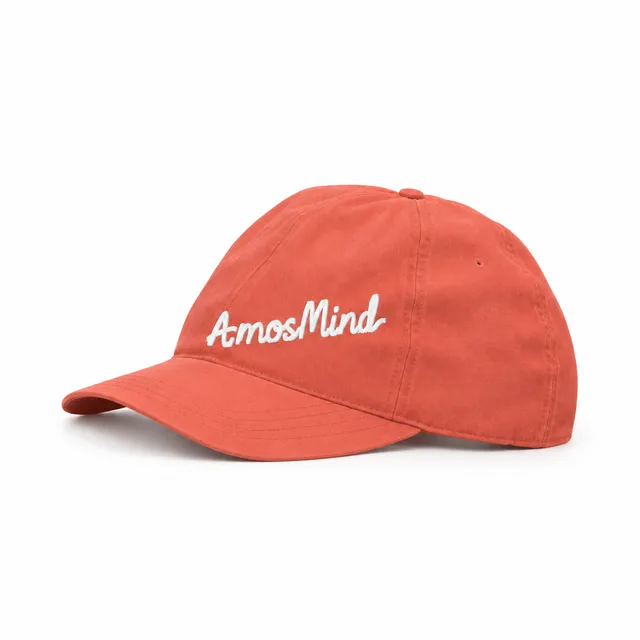
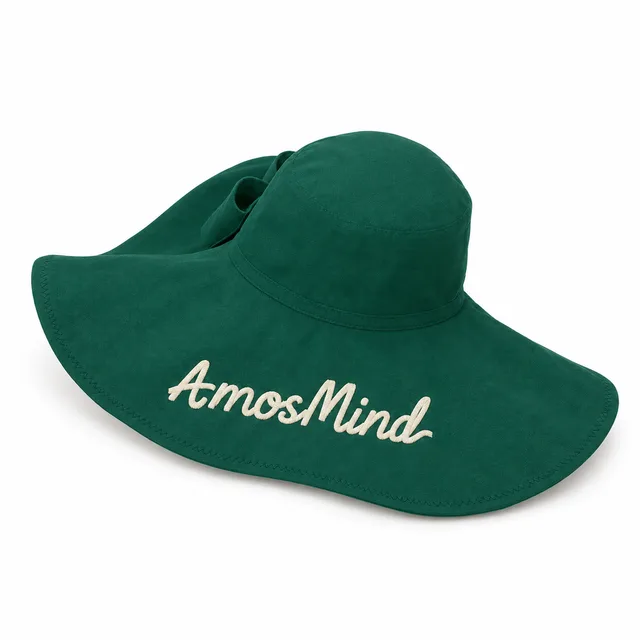
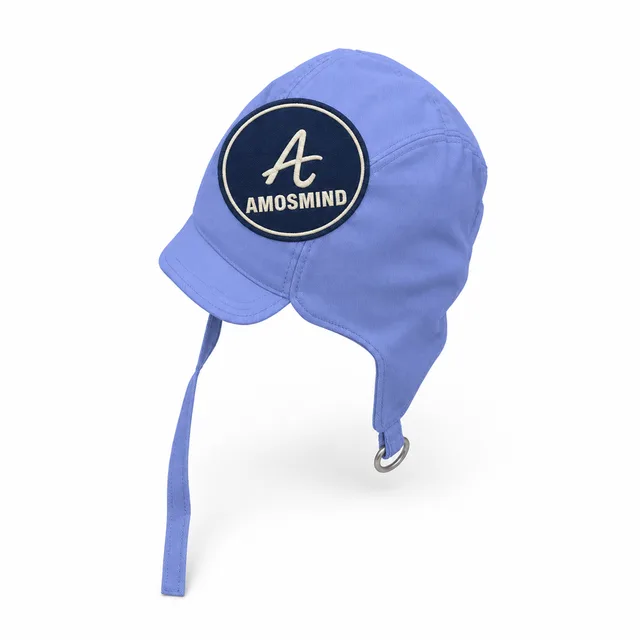
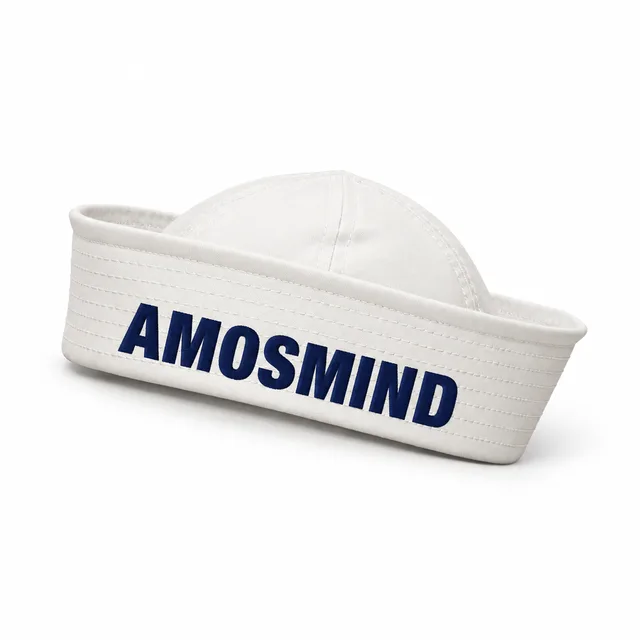
Is a hat mockup the same as a cap mockup?
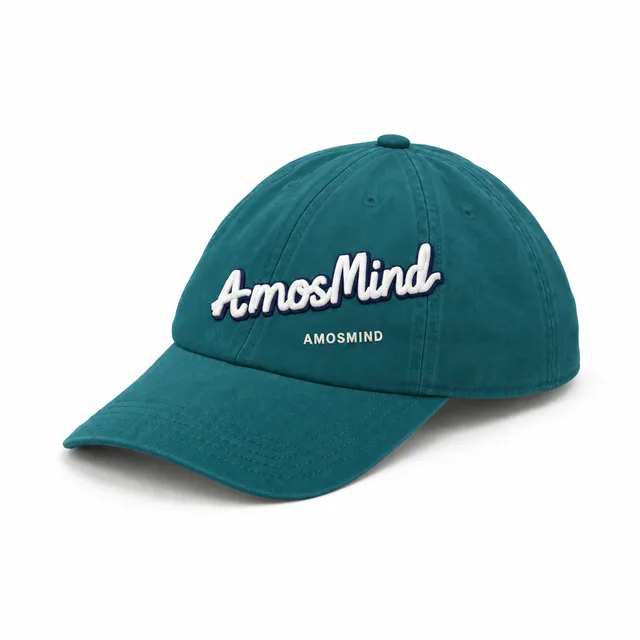
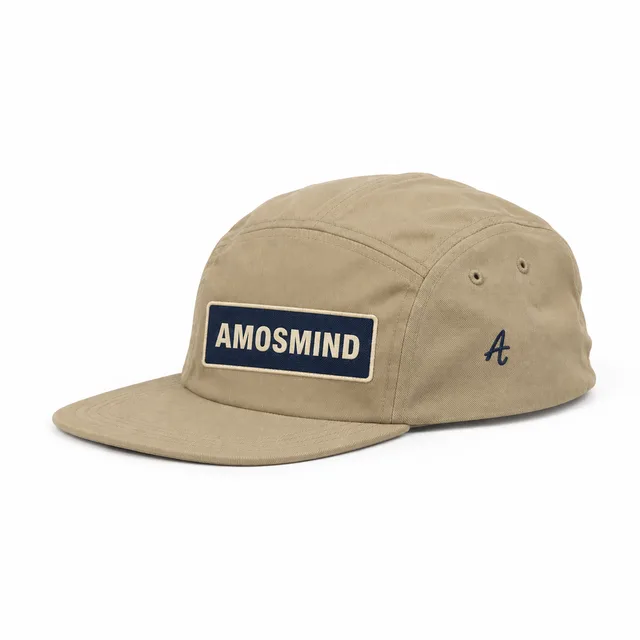
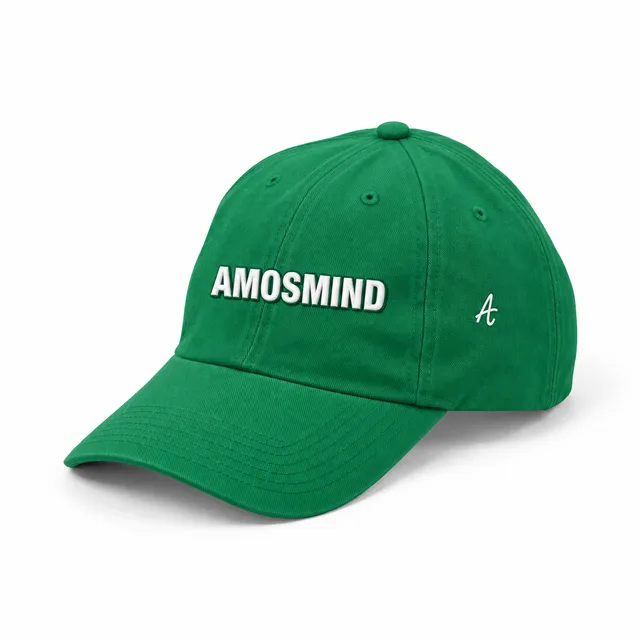
People use both terms for the same thing: a preview of a design on headwear. Caps are simply hats with a visor, so you will find them here next to beanies, bucket hats, berets and balaclavas.
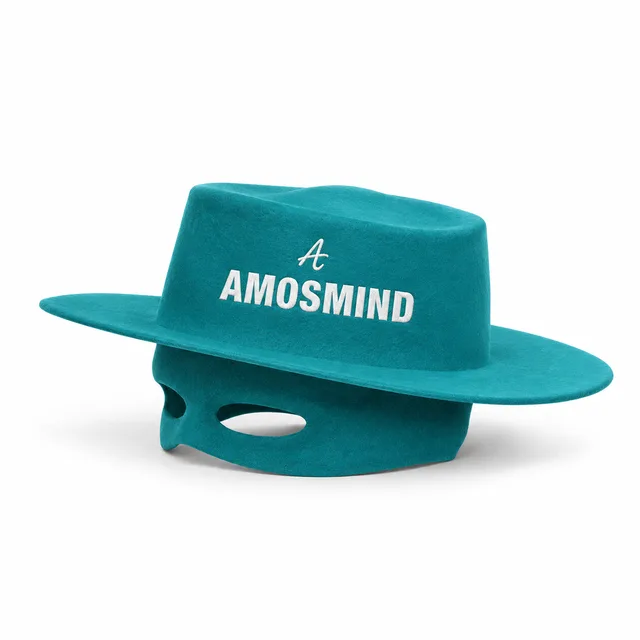
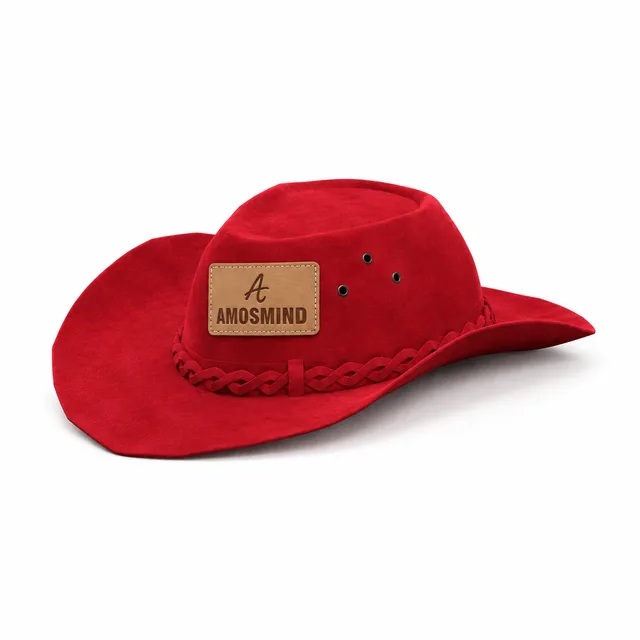
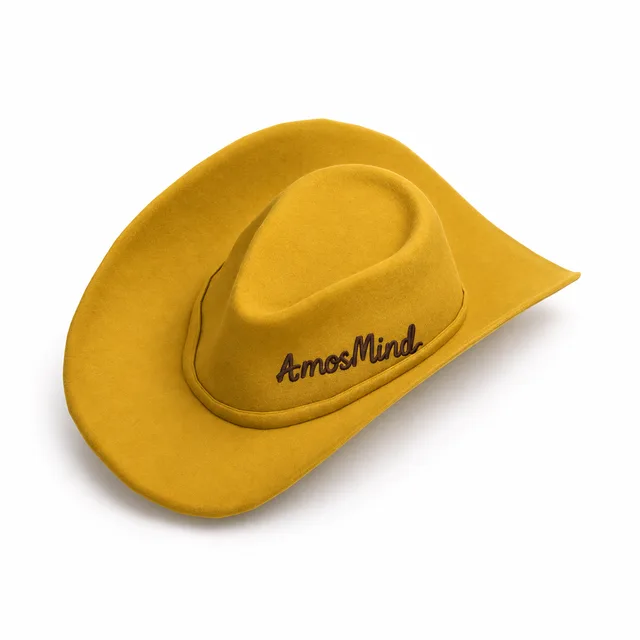
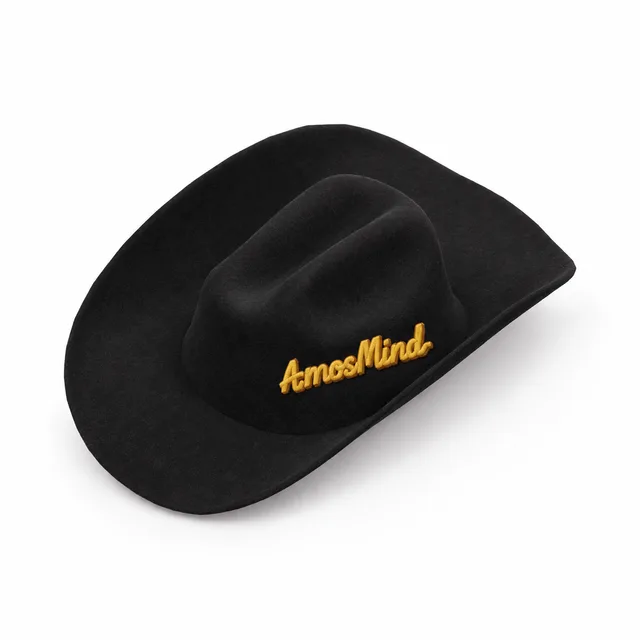
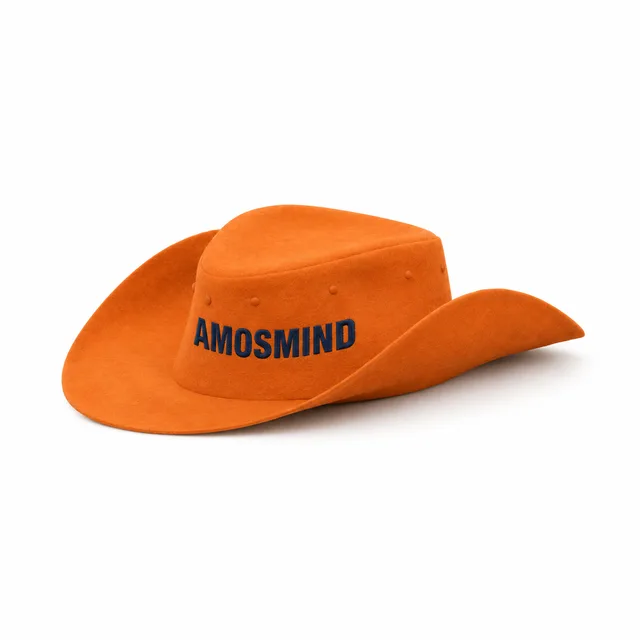
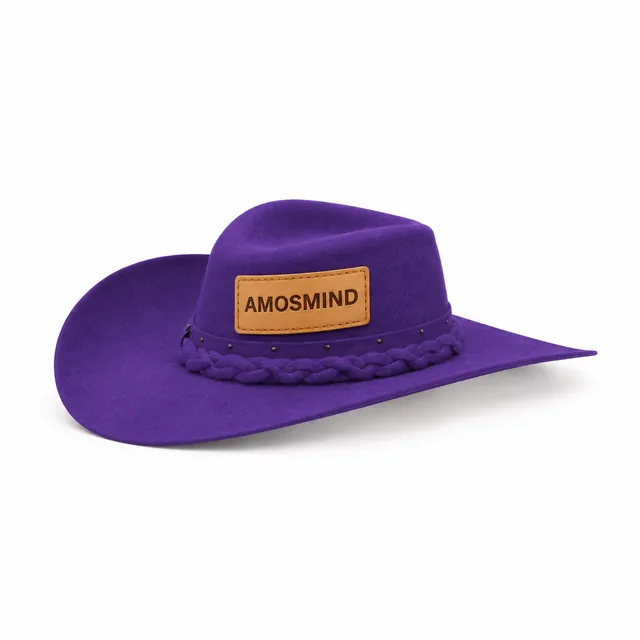
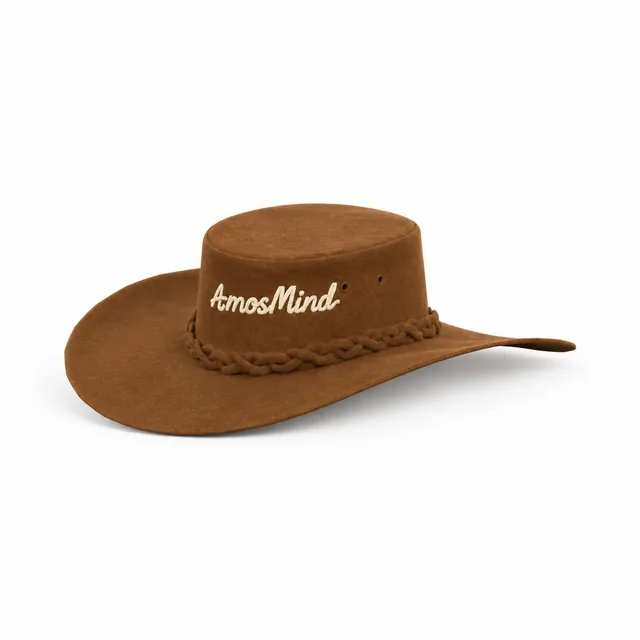
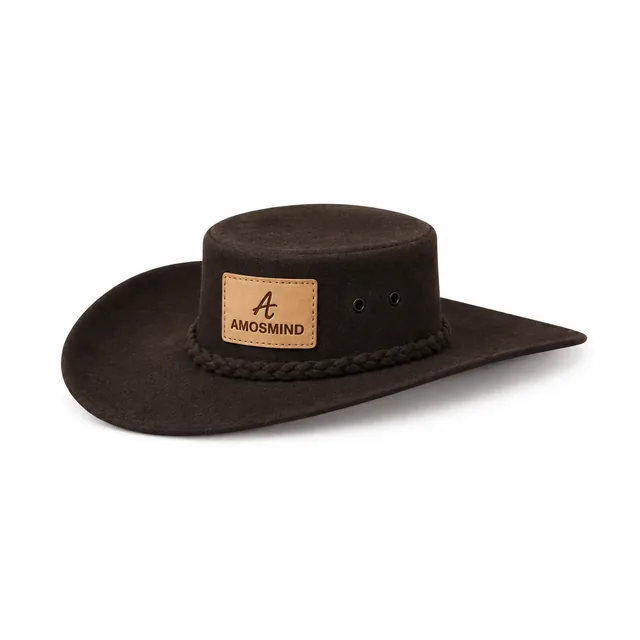
Each hat mockup puts your logo on a 3D cap, beanie, bucket hat, cowboy hat or balaclava you can turn to any angle. Color the brim, band or pom-pom on its own, then switch the fabric look and export a PNG or JPG.
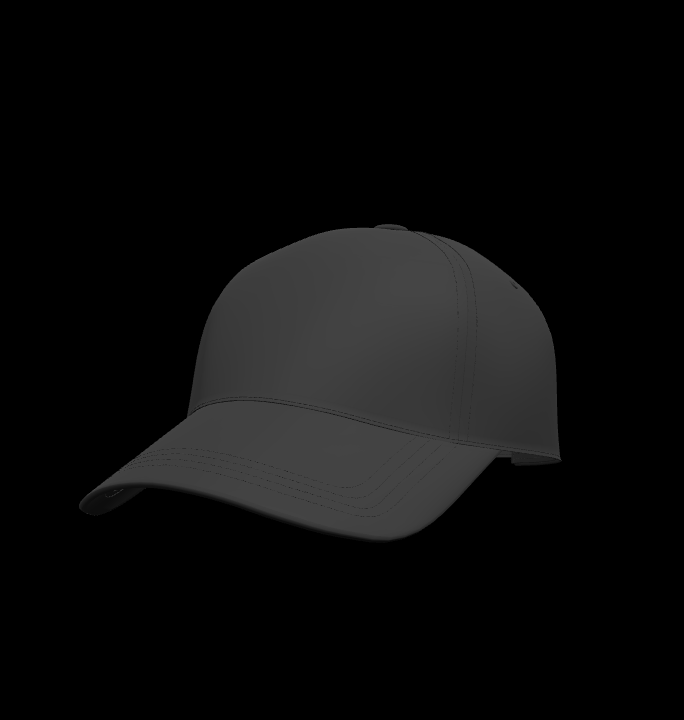
77 mockups
Short answers about making hat mockups in the editor.
People use both terms for the same thing: a preview of a design on headwear. Caps are simply hats with a visor, so you will find them here next to beanies, bucket hats, berets and balaclavas.
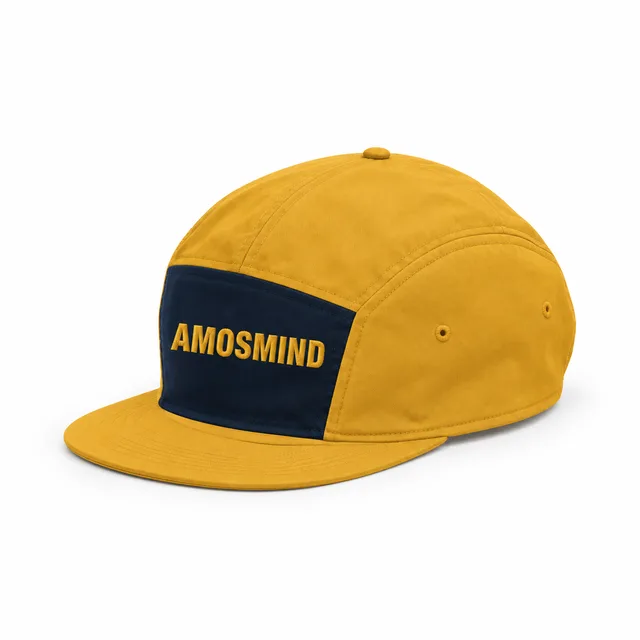
On most caps it is the front panel. The 5 panel camp cap and the unstructured dad hat add a side print area, and the visors and the wide-brim sun hat let you print the brim. Back panels and straps can be colored but not printed.
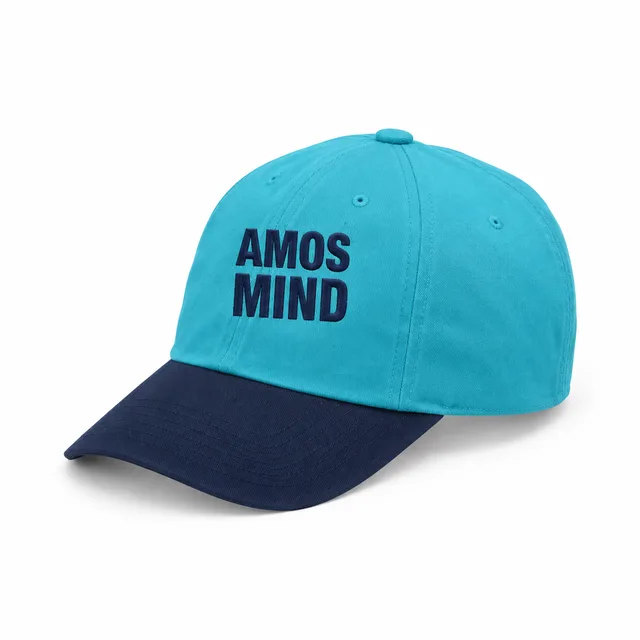
Yes. Set a main color for the whole hat, then open Garment parts and pick the brim, button or another part to give it its own color. The parts on the list depend on the style you open.
Upload the same artwork file to each style. Every hat has its own print areas and curve, so resize and reposition the design on each crown and turn the model to check it from the side.
Yes. In the render dialog choose PNG and switch on the transparent background. JPG files always come with a solid background. Log in with an email code or Google to upload artwork, save projects and render images.
Each hat style has its own page with the same editor. Start with the shape closest to the blank you plan to order.
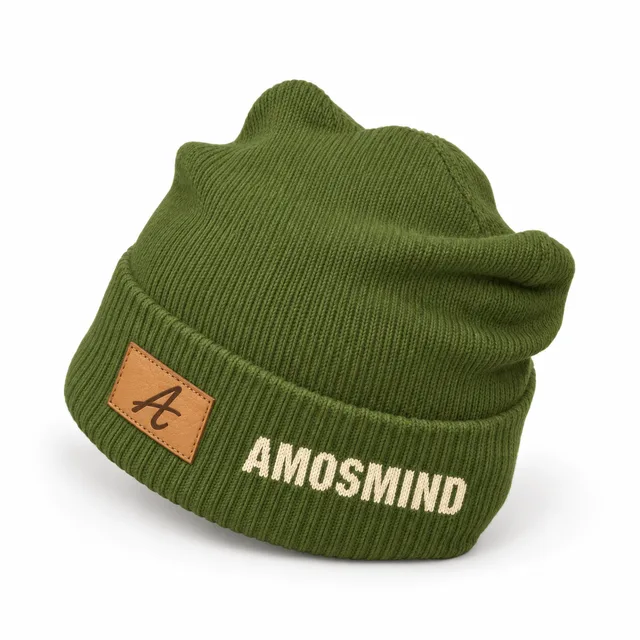
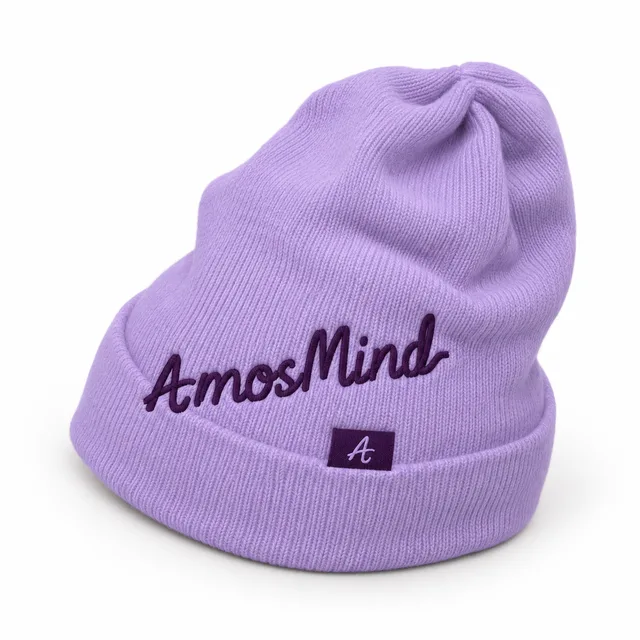
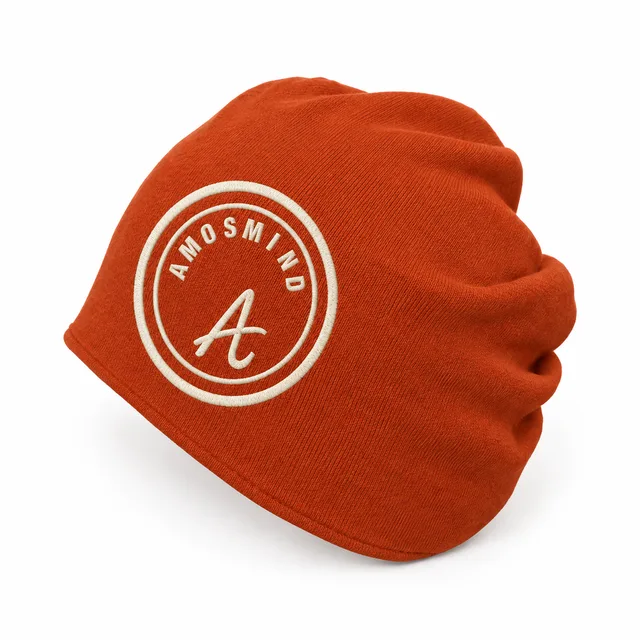
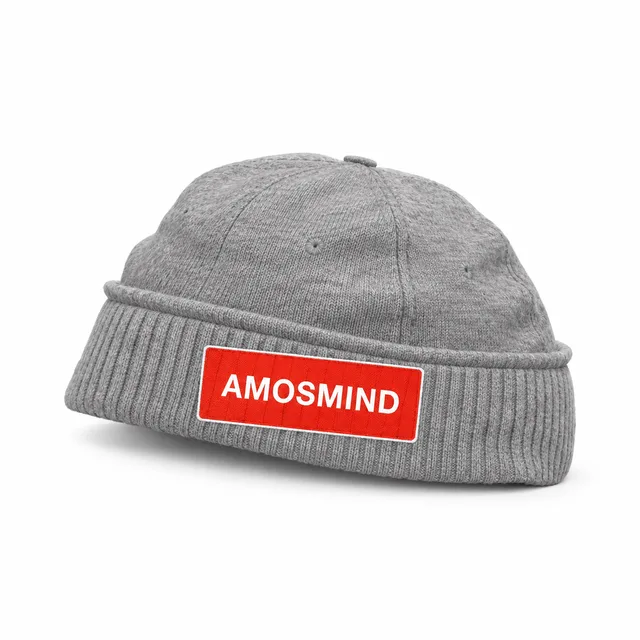
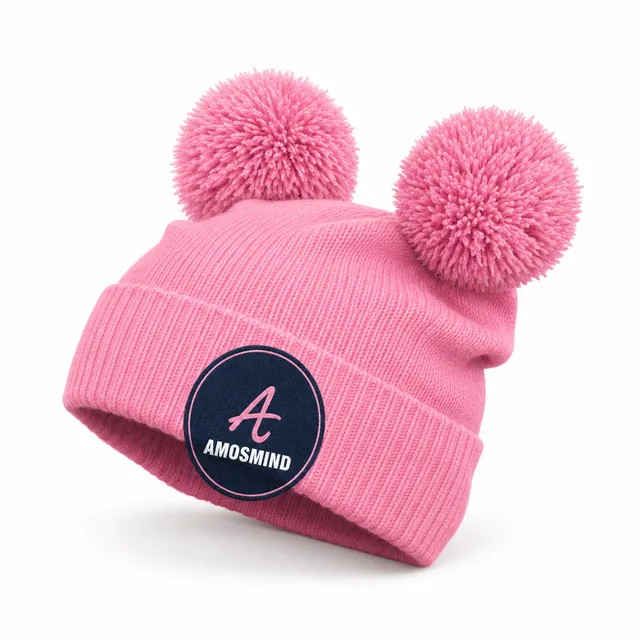
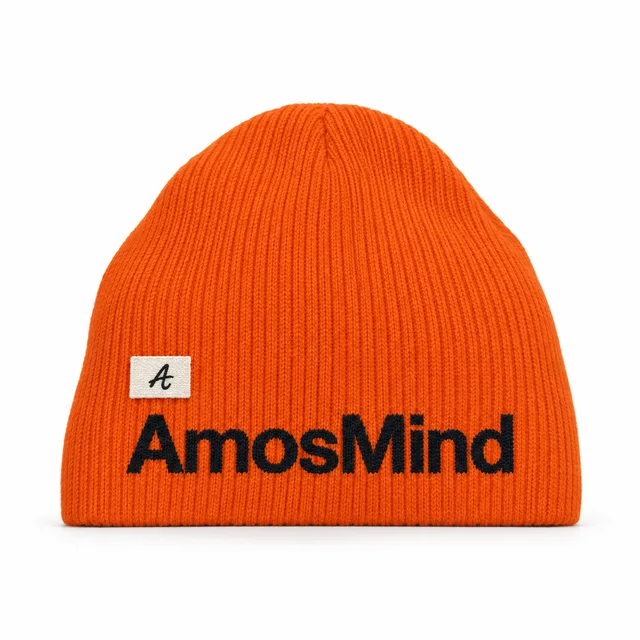
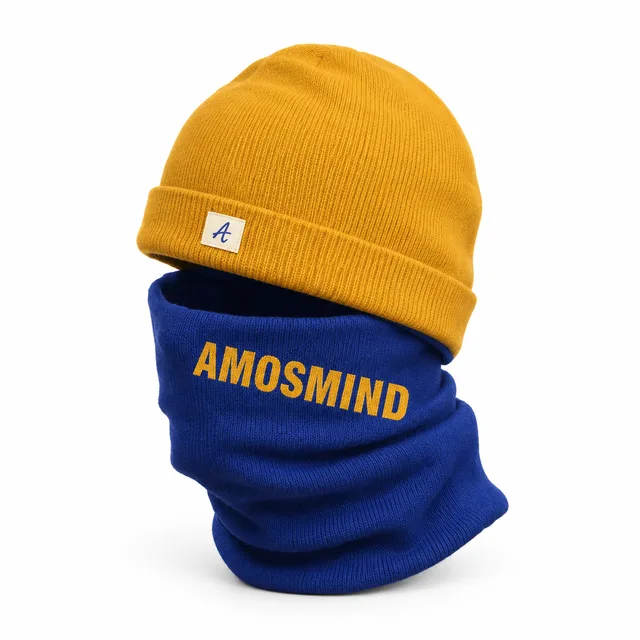
Cuffed, slouchy, uncuffed and pom-pom knit hats. On cuffed styles the main print area sits on the folded cuff.
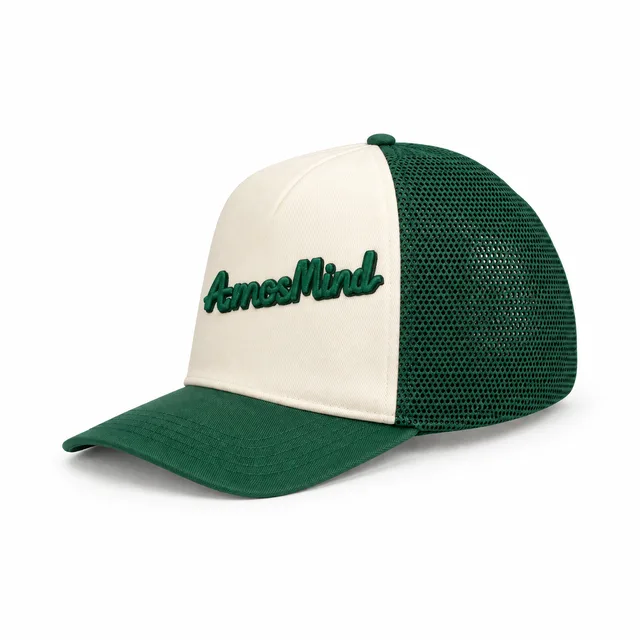
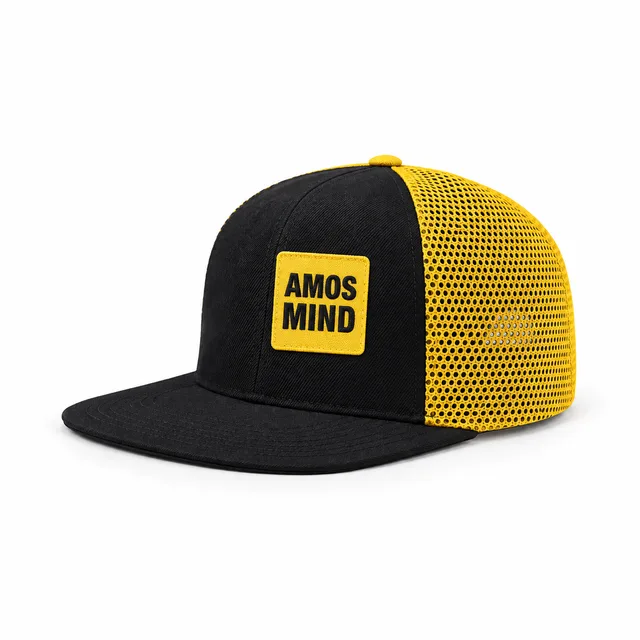
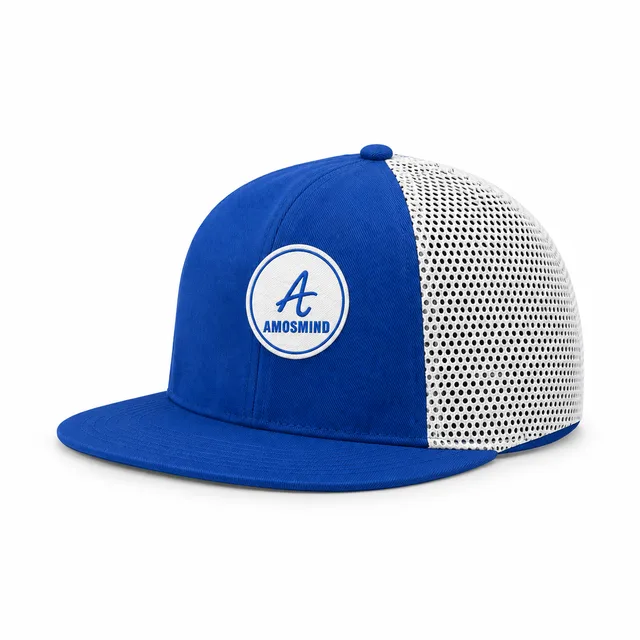
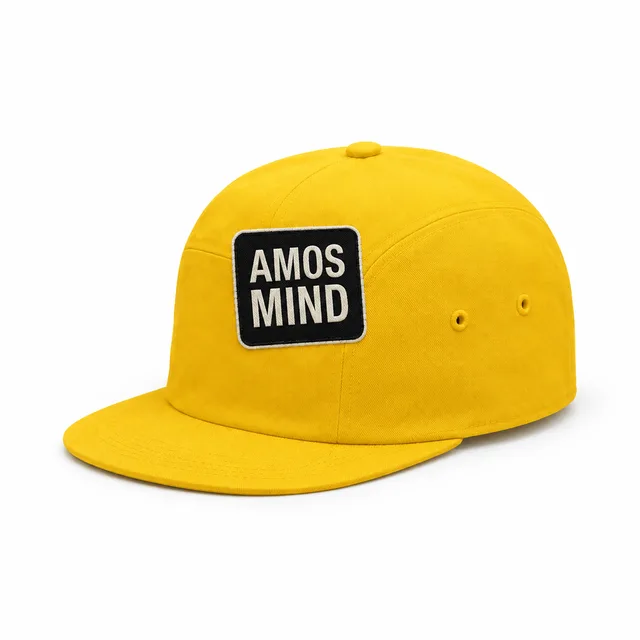
Foam-front caps with a mesh-look back panel, in curved-brim, flat-brim and snapback shapes.
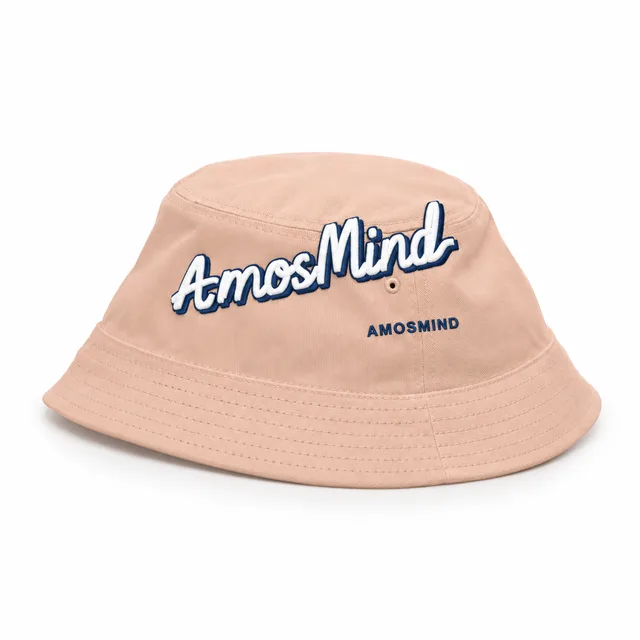
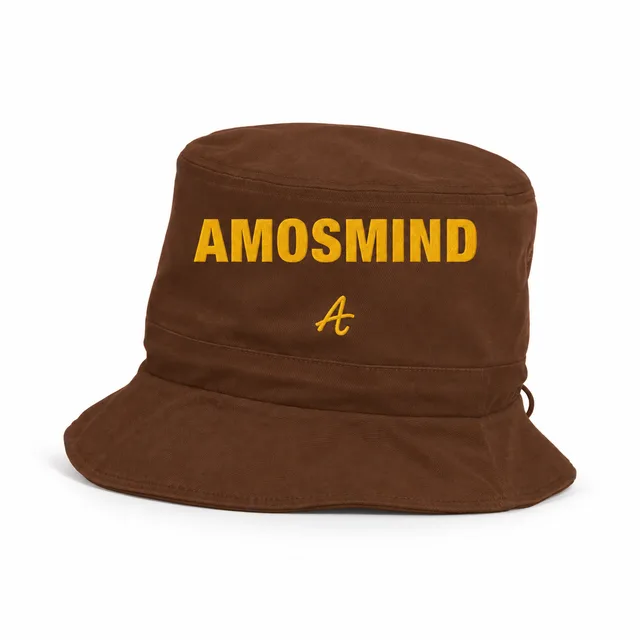
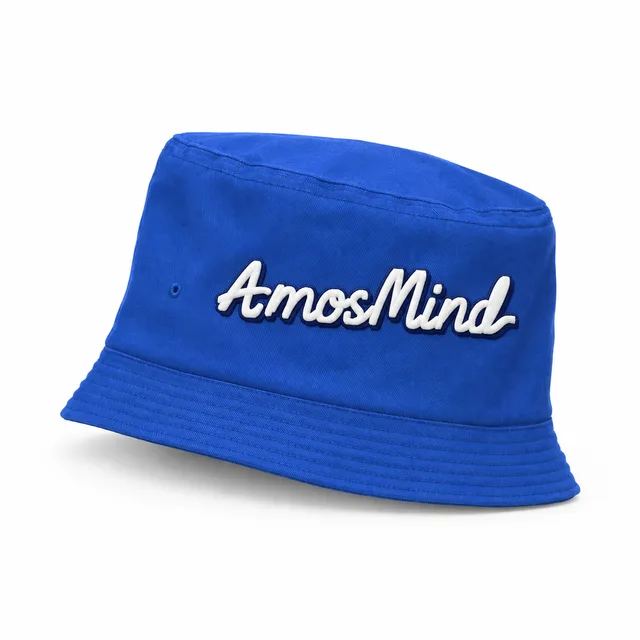
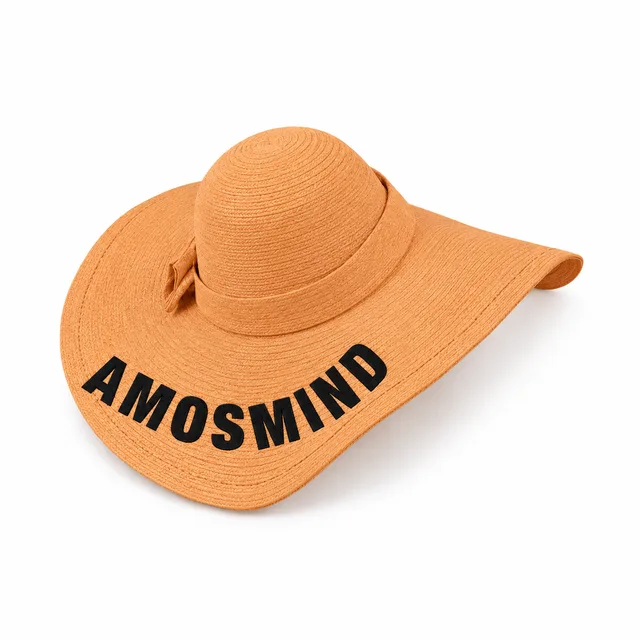
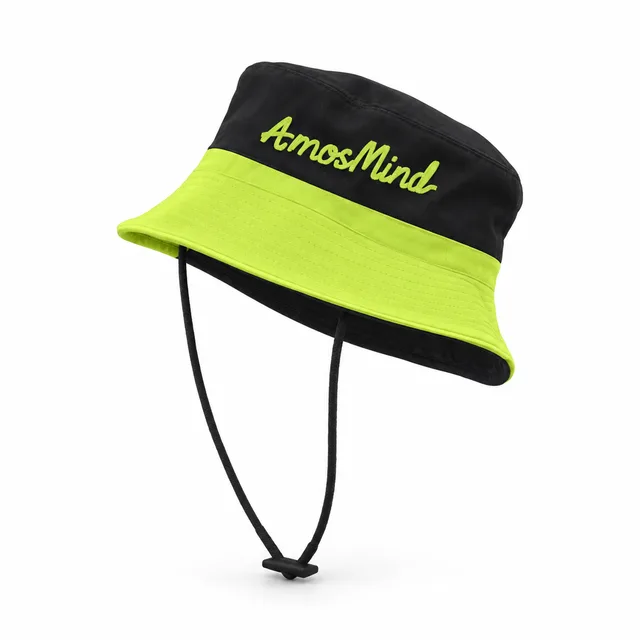
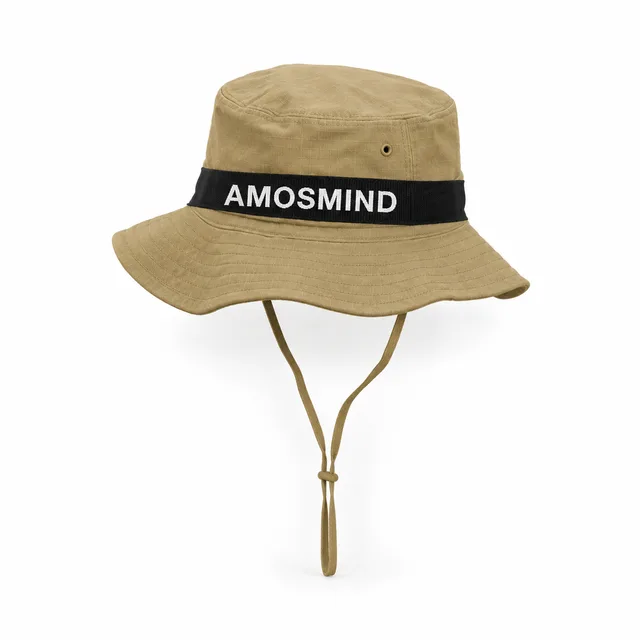
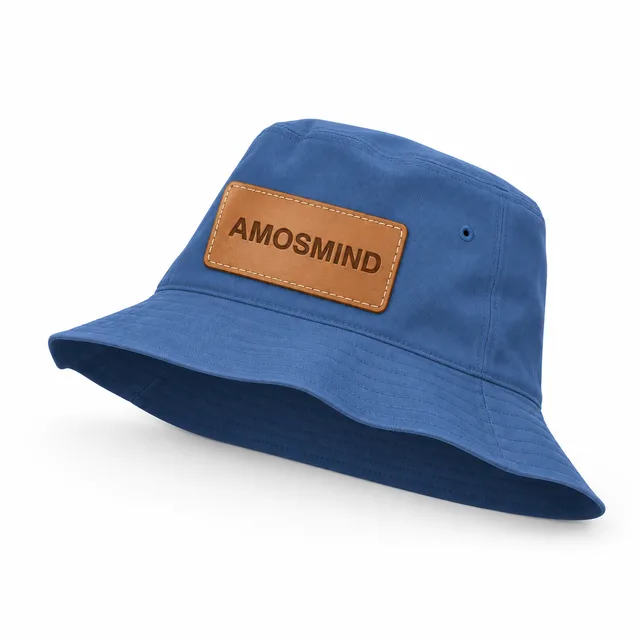
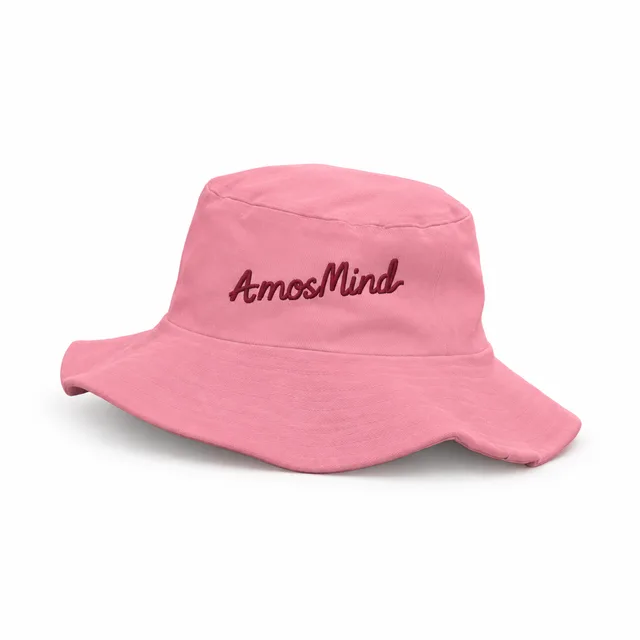
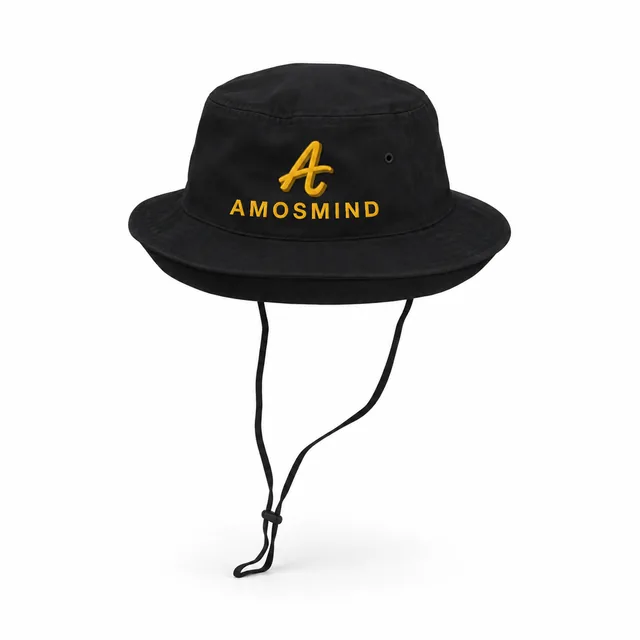
Short, wide, floppy and round brims, some with a drawstring or chin strap. Artwork goes on the front of the crown.
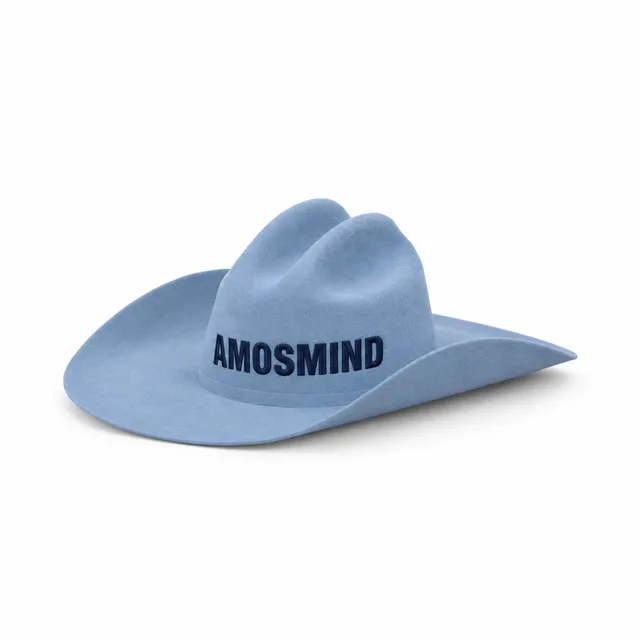
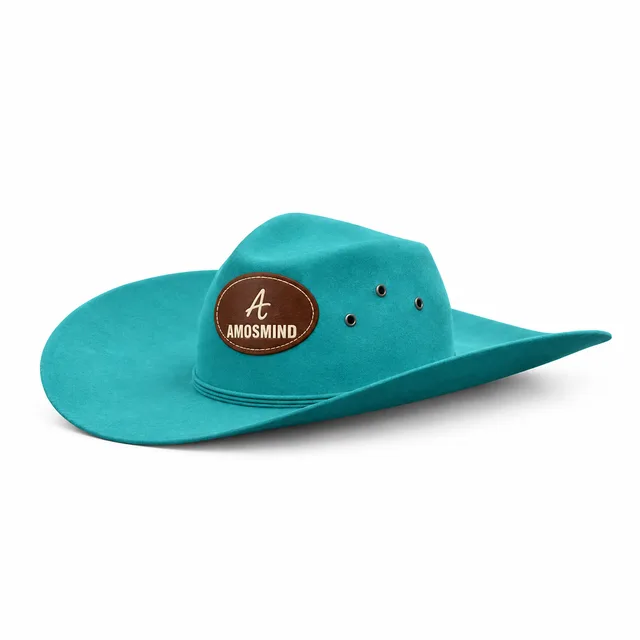
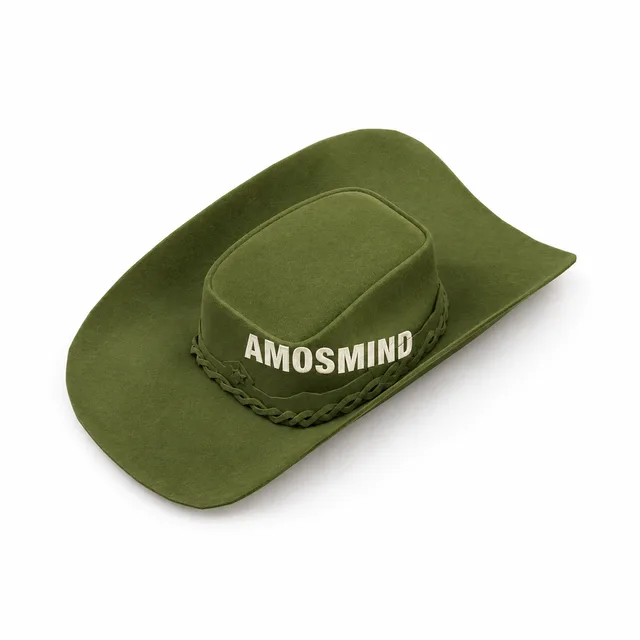
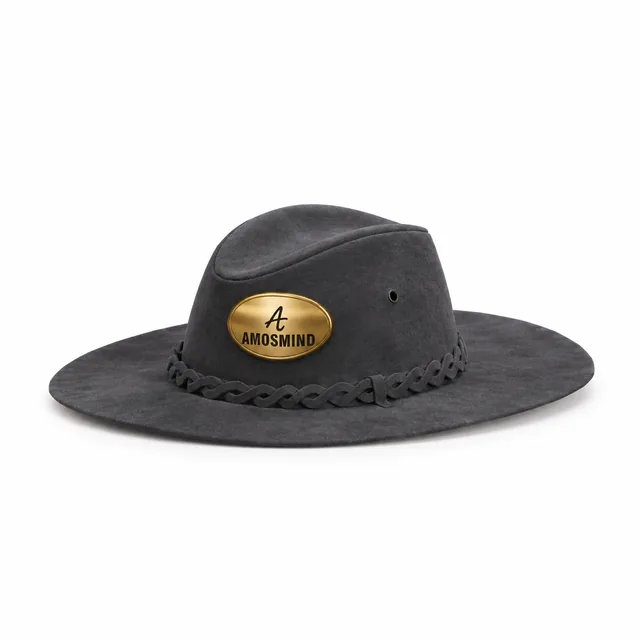
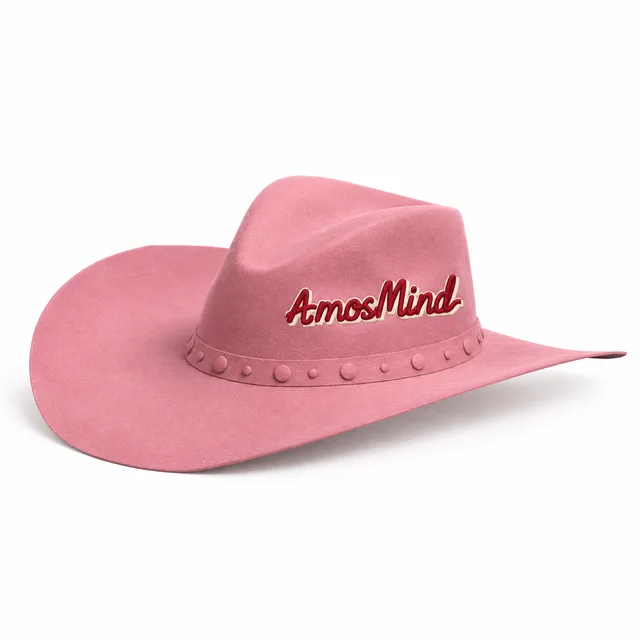
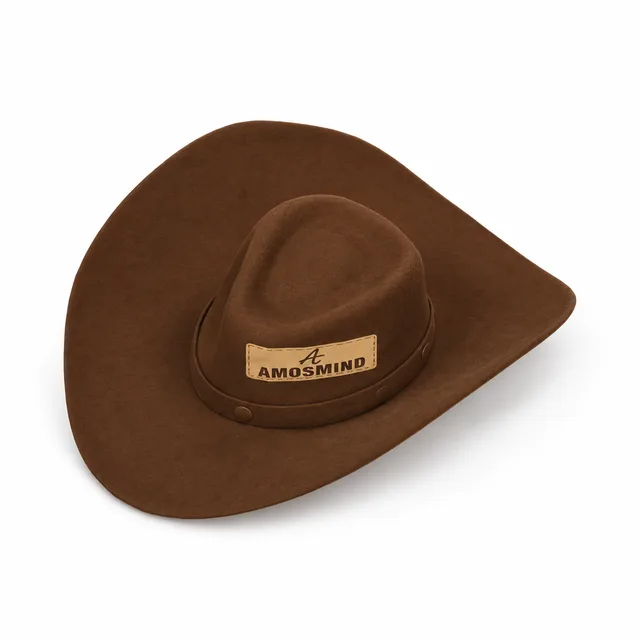
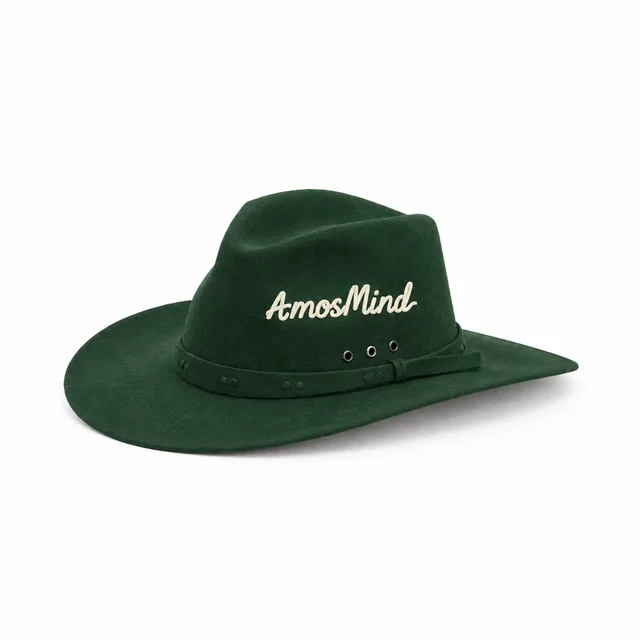
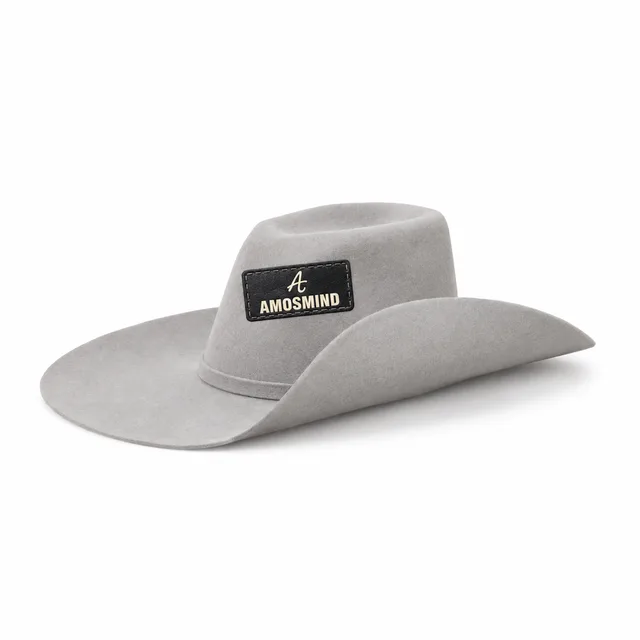
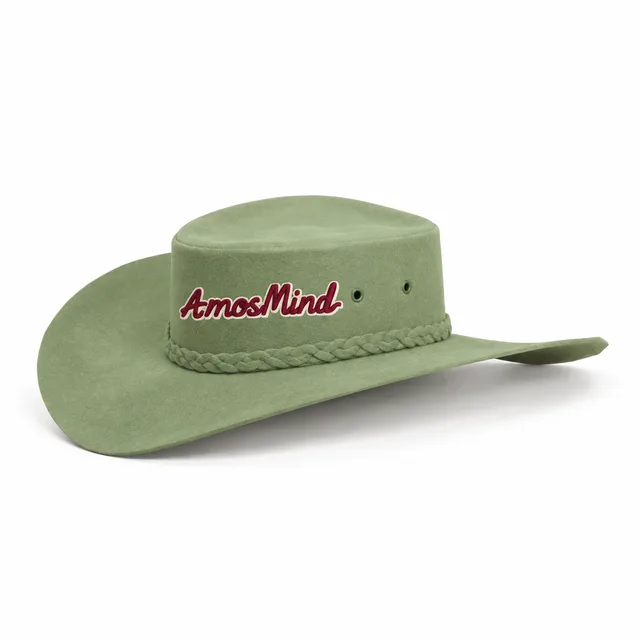
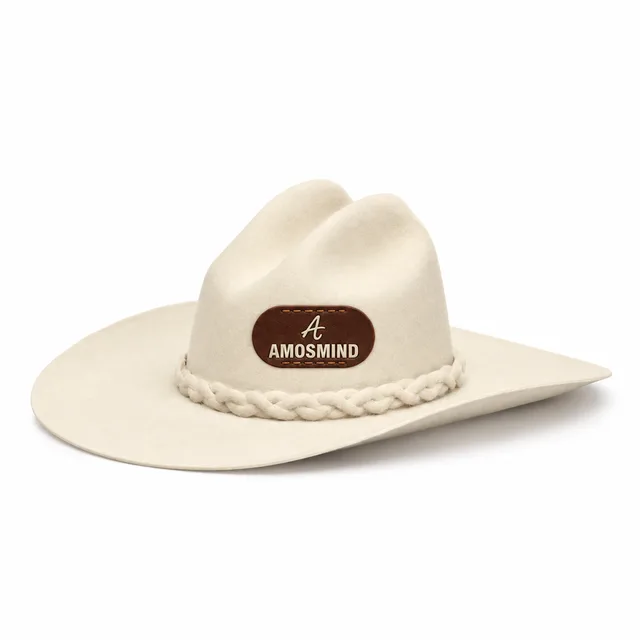
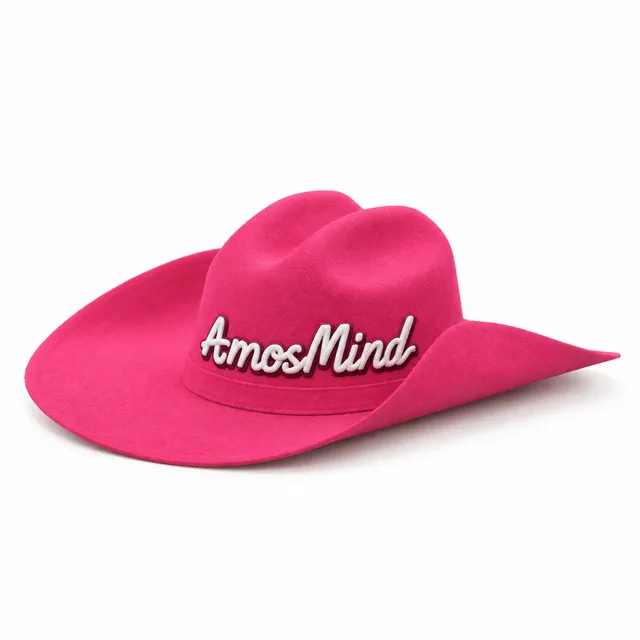
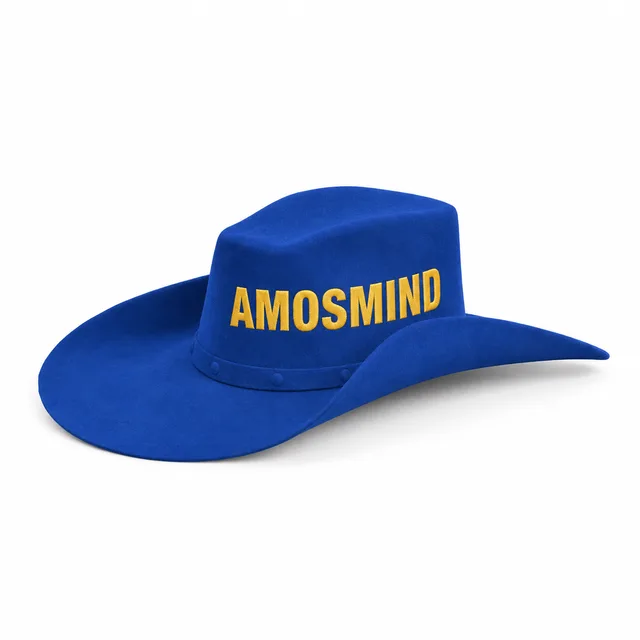
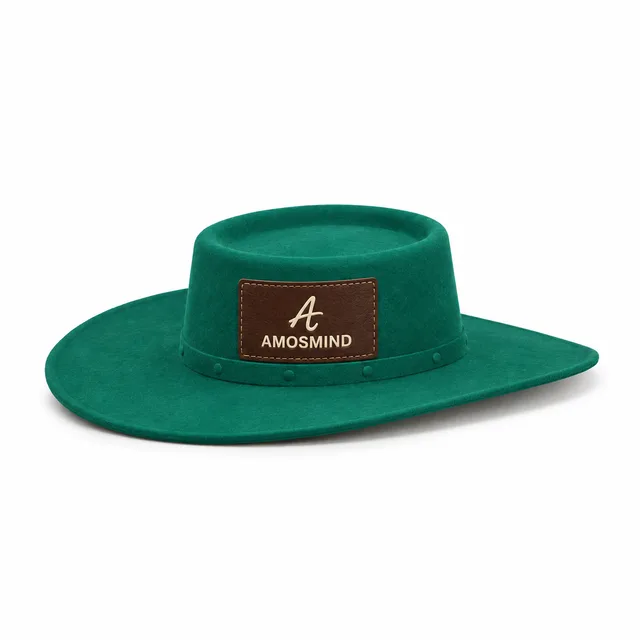
Cattleman, gambler, teardrop and pinch-front crowns with a print area on the crown front.
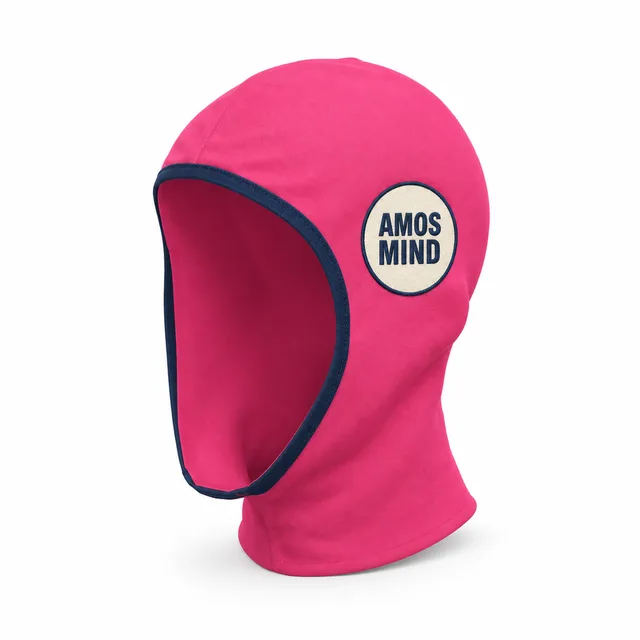
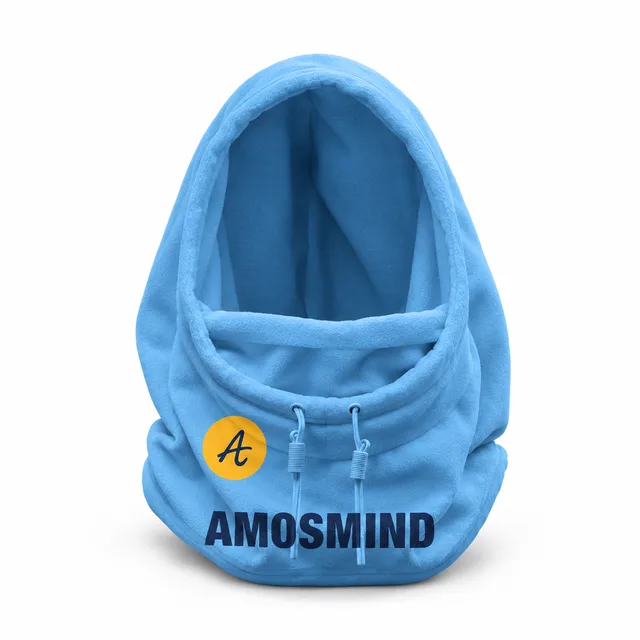
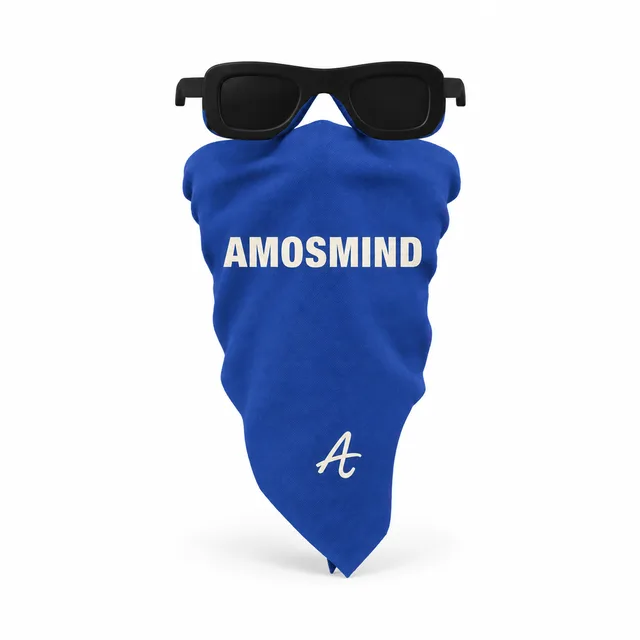
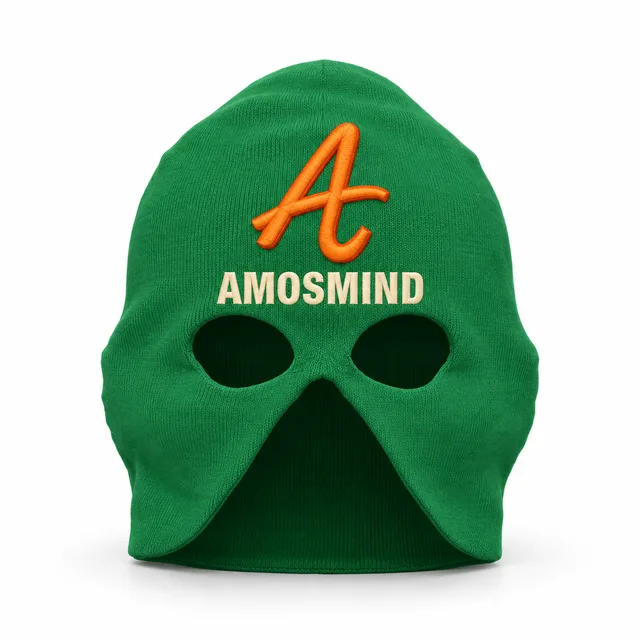
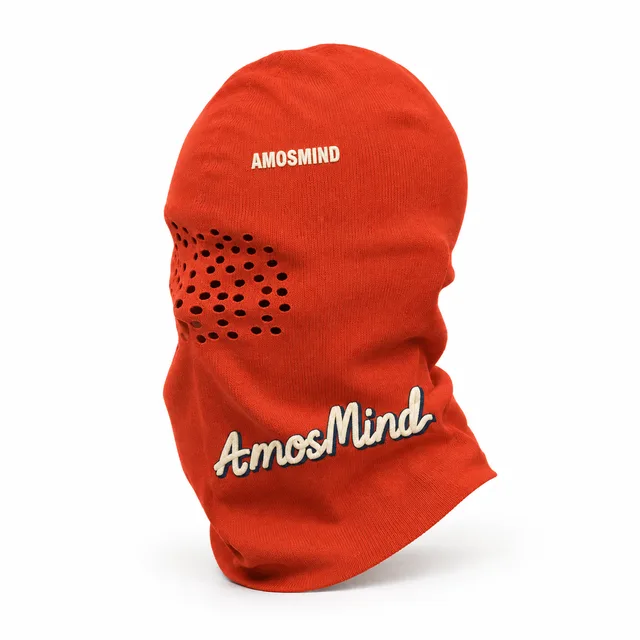
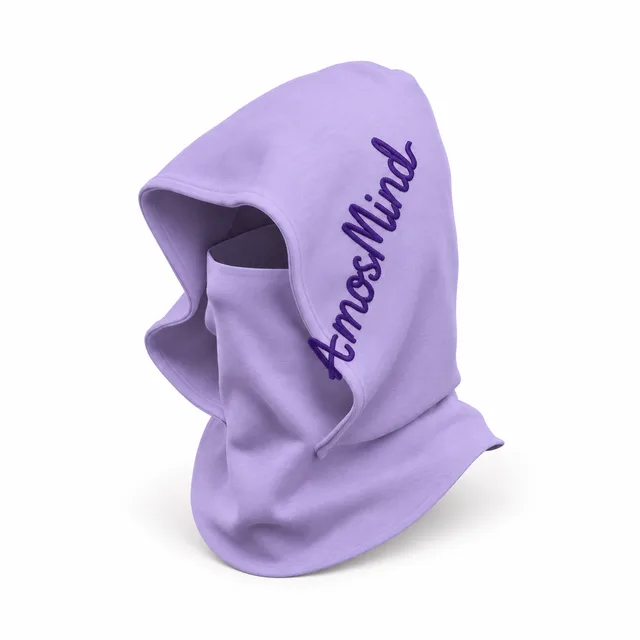
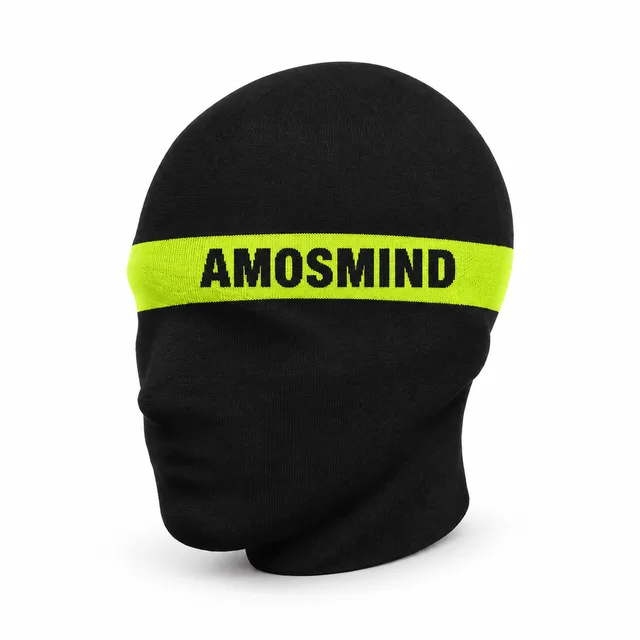
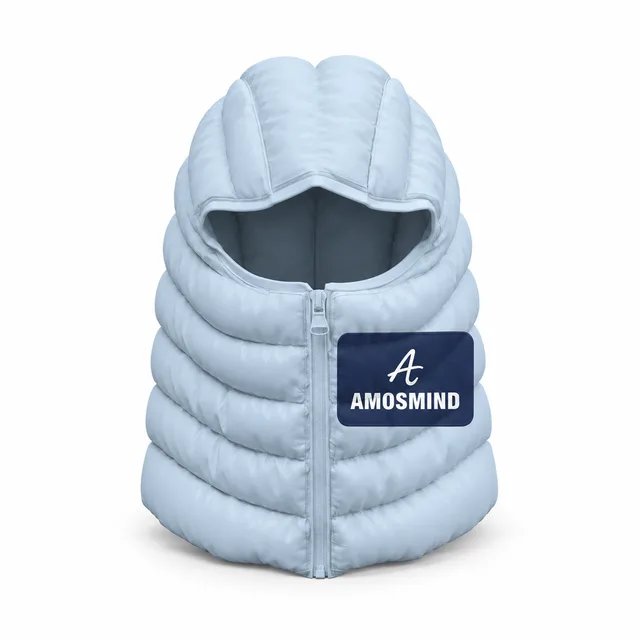
Open-face, hooded, quilted and neck-gaiter balaclavas, each with a front print area.
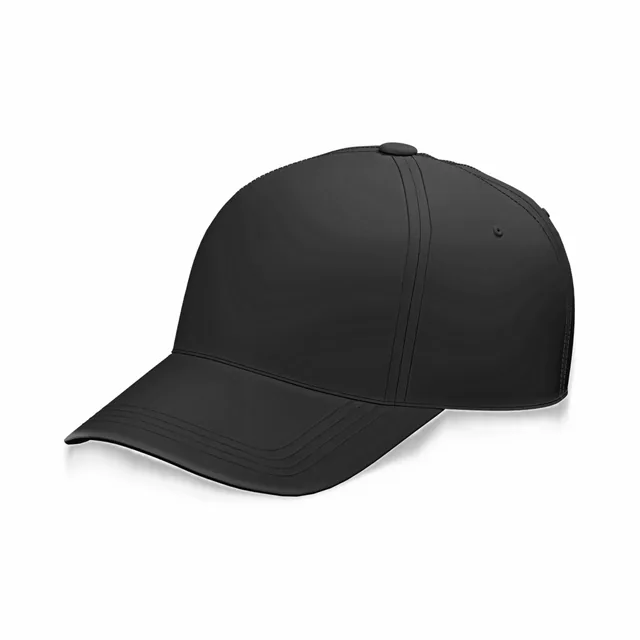
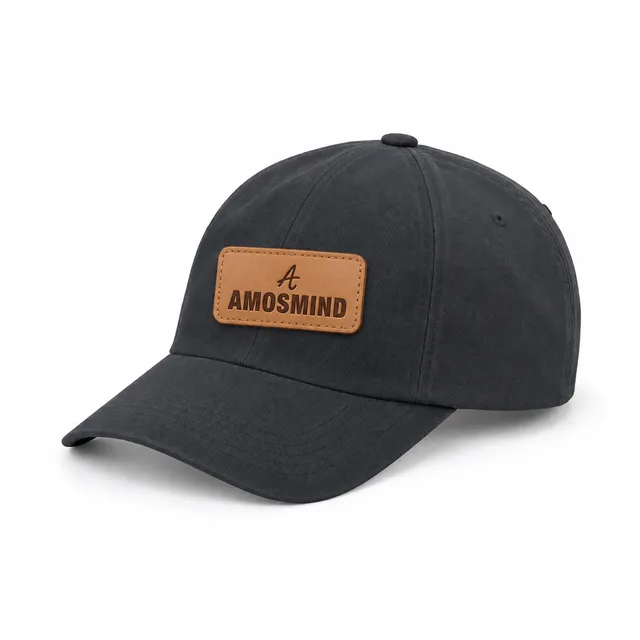
Baseball and trucker caps that open in black, ready for light-colored logos.
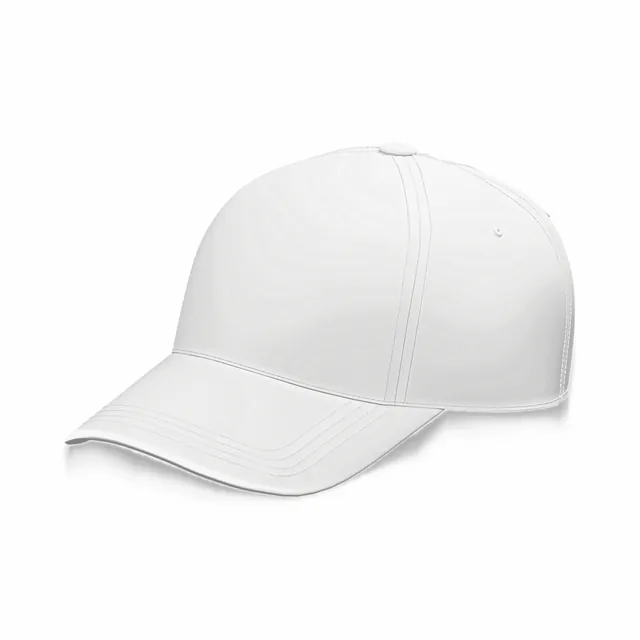
The same cap shapes set to white, for dark or full-color artwork.
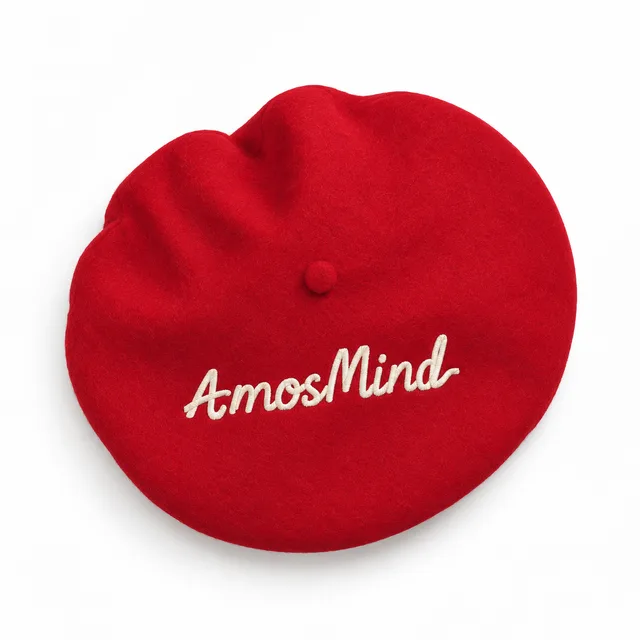
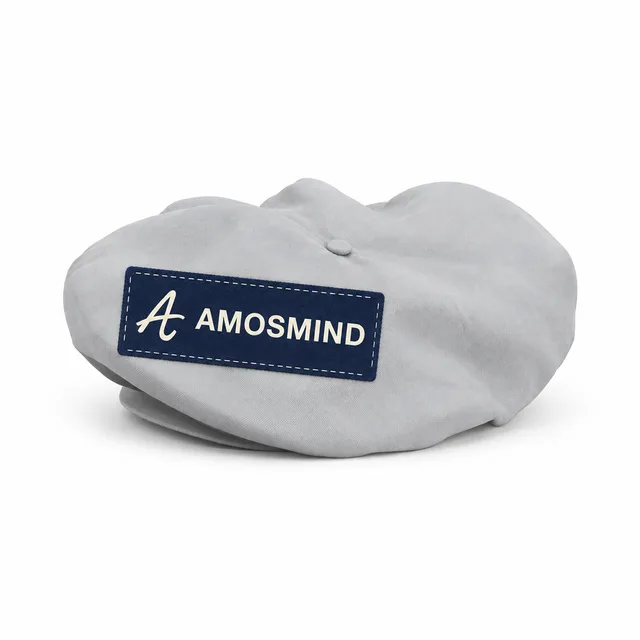
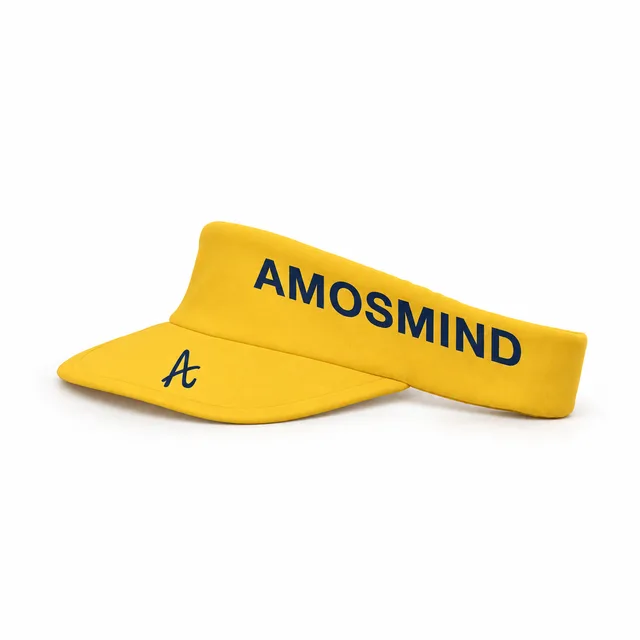
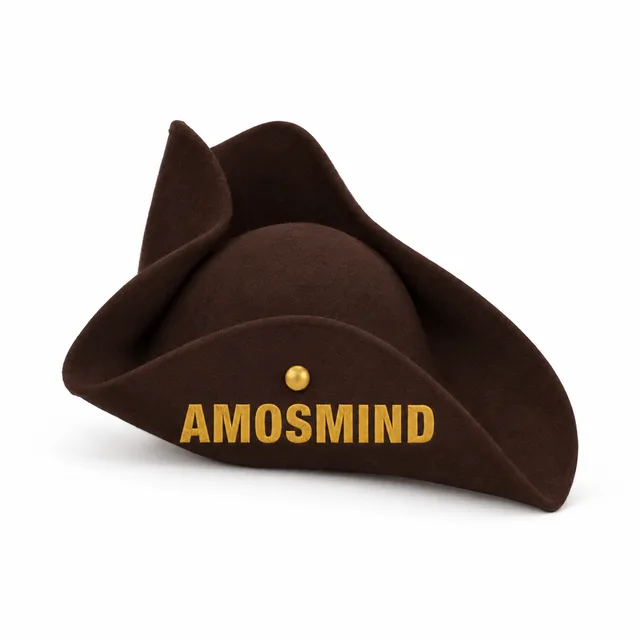
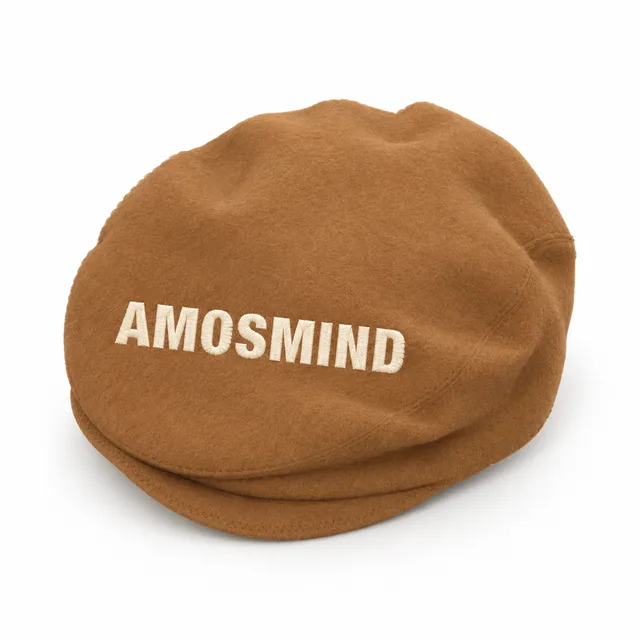
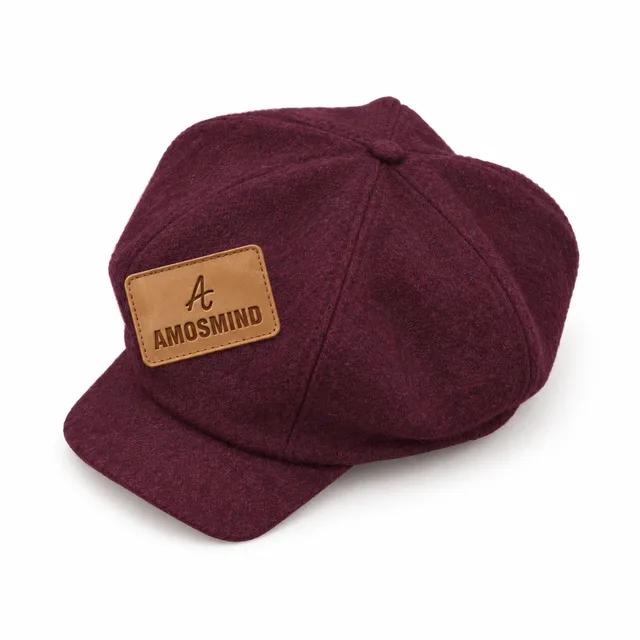
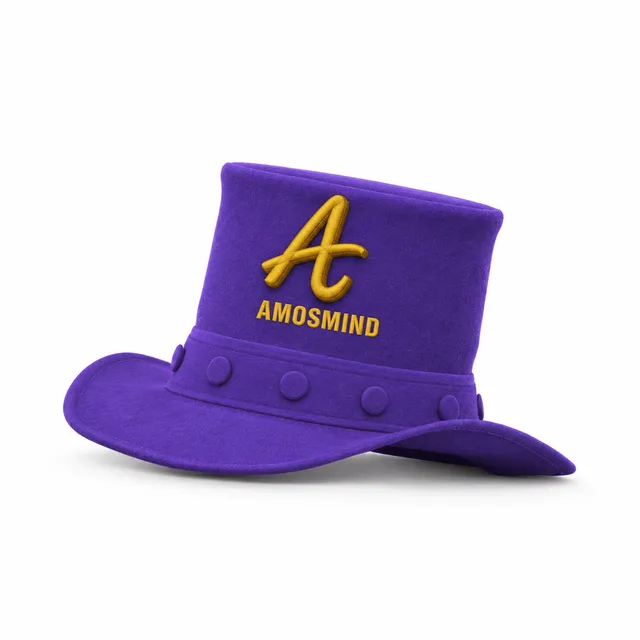
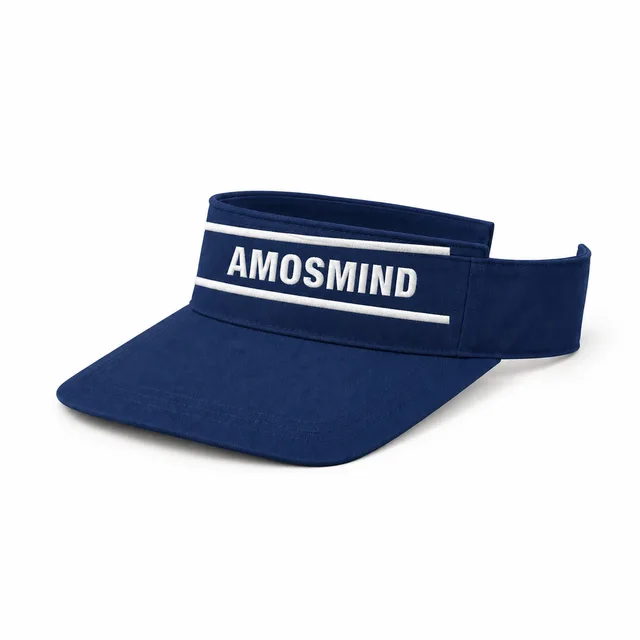
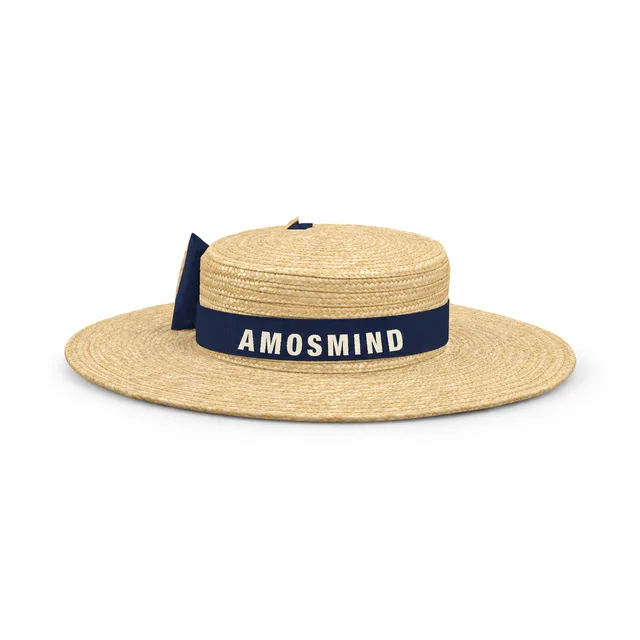
Berets, cabbie and paperboy caps, sun visors, a tricorn, a sailor hat, a top hat and full-head masks are on this page.
Most hat styles have one main print area on the front. Some add a second area, so check the list in the editor before you plan a two-placement design.
| Print area | Where it is |
|---|---|
| Front | The main area on almost every style: the front panels of a cap, the crown of a bucket hat or beret, or the cuff of a cuffed beanie. |
| Side | A second area on the right side of the 5 panel camp cap, the unstructured dad hat and the open face balaclava. |
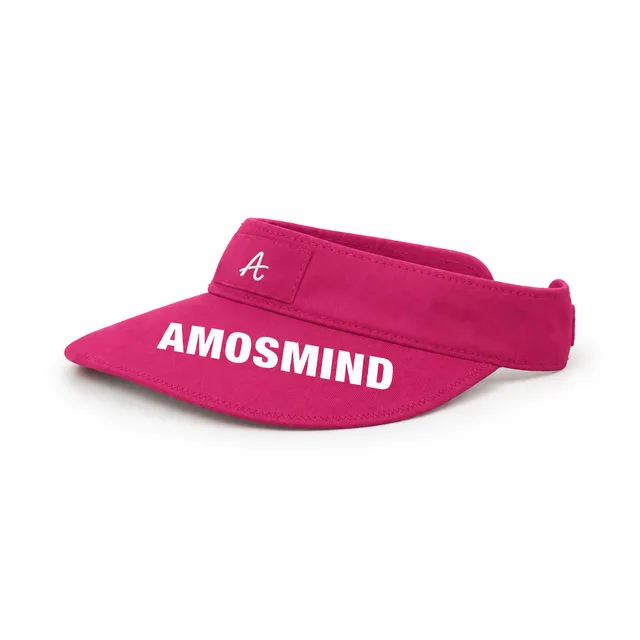
| Brim | Printable on the elastic visor, the sun visor and the wide-brim sun hat. |
| Label | A small, tag-sized area on the long cuffed beanie and the ribbed cuff beanie. |
| Band | The band of the wide-brim bucket hat with string. |
| Hood and cuff | The medieval hood balaclava has a hood area, and the balaclava beanie with neck gaiter has a cuff area. |
Print areas are previews for mockups, not production sewing patterns. Parts such as buttons, straps and pom-poms can be colored but not printed.
Set one main color for the whole hat, then open Garment parts to change pieces such as the brim, back panel, band or pom-pom on their own. The parts you can pick depend on the style.
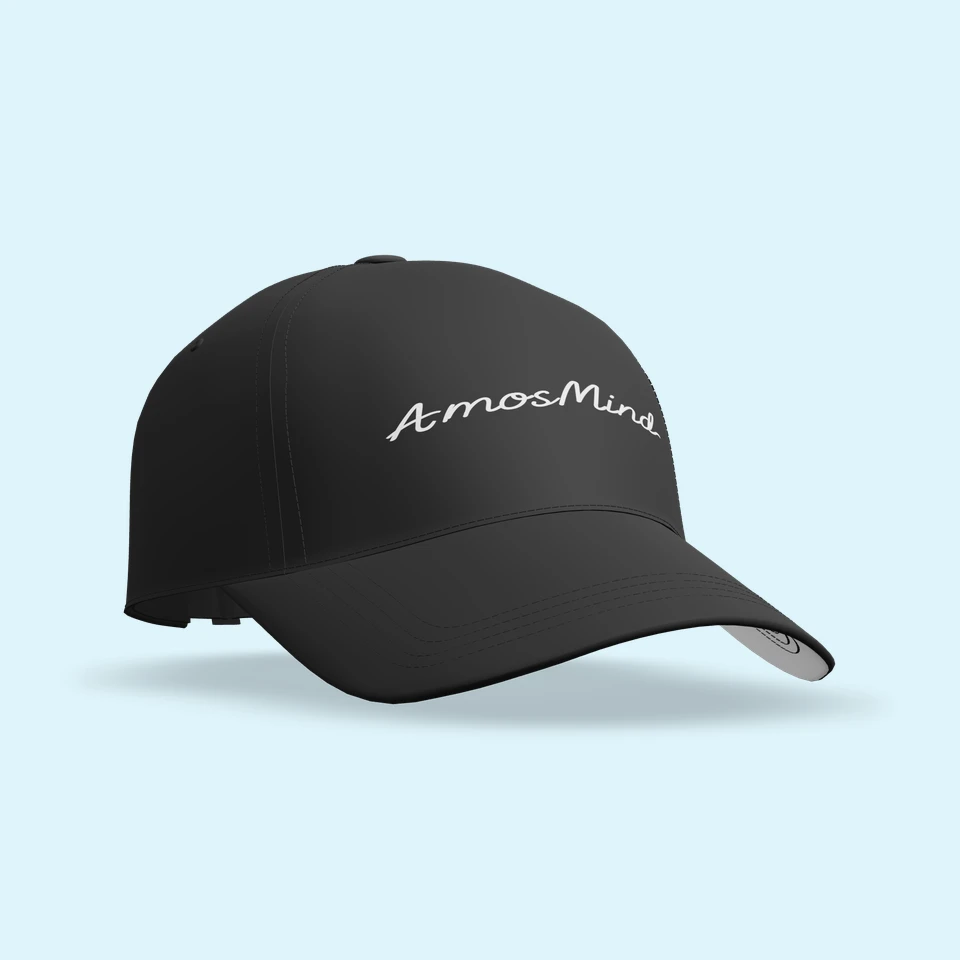
Keep the crown black and give the underside of the brim its own color, so the cap reads two-tone from below.
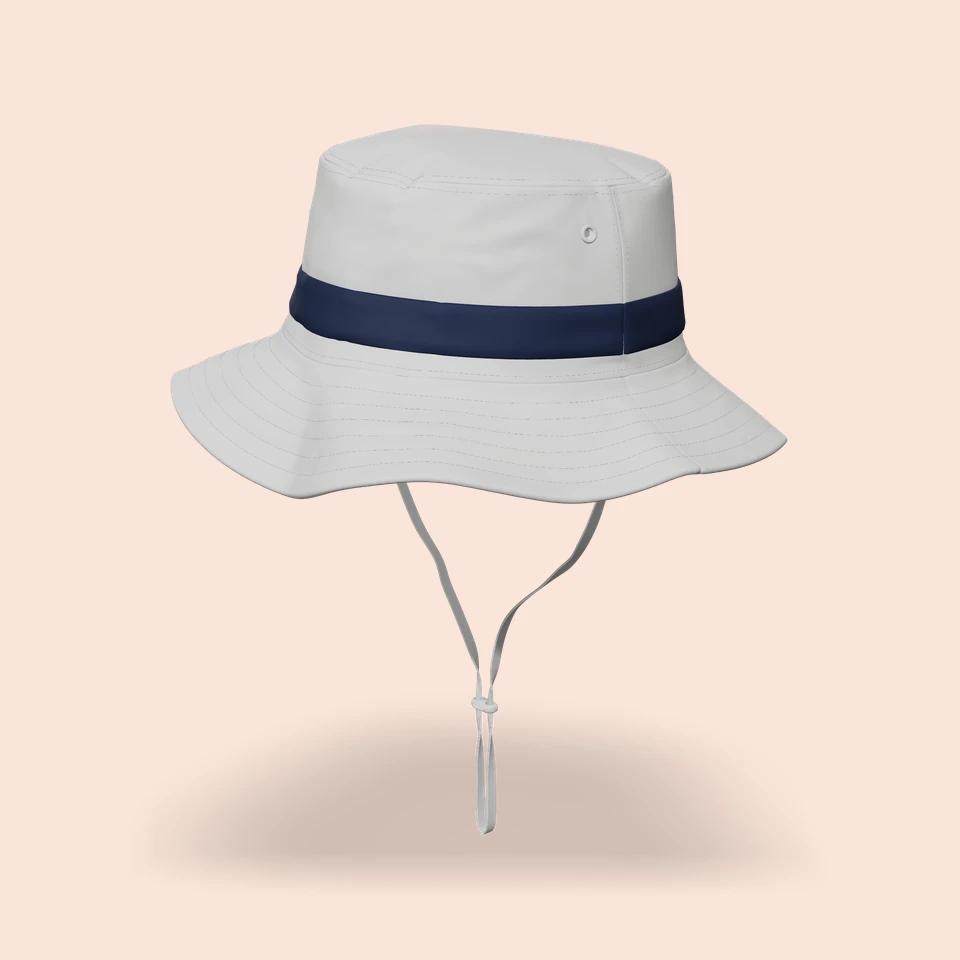
Suits bucket hats and wide brims, where the band frames the crown.
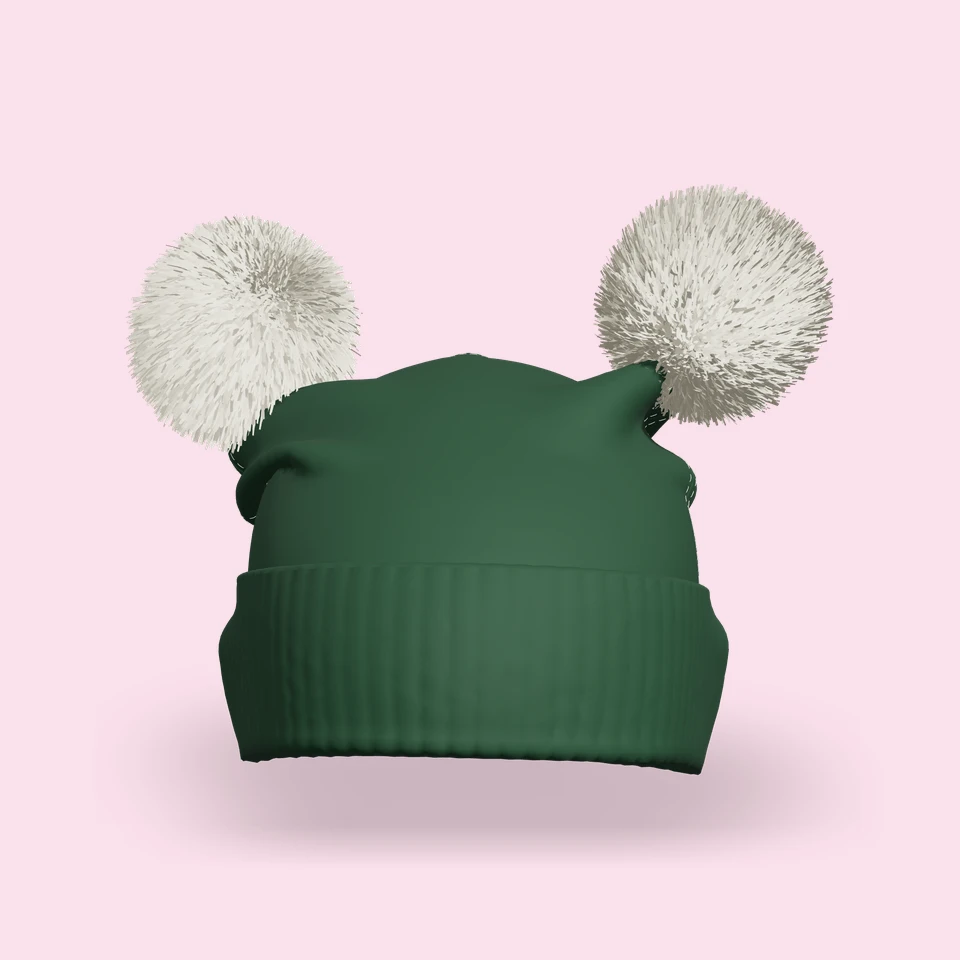
A winter pairing for beanies; the pom-pom can differ from the crown.
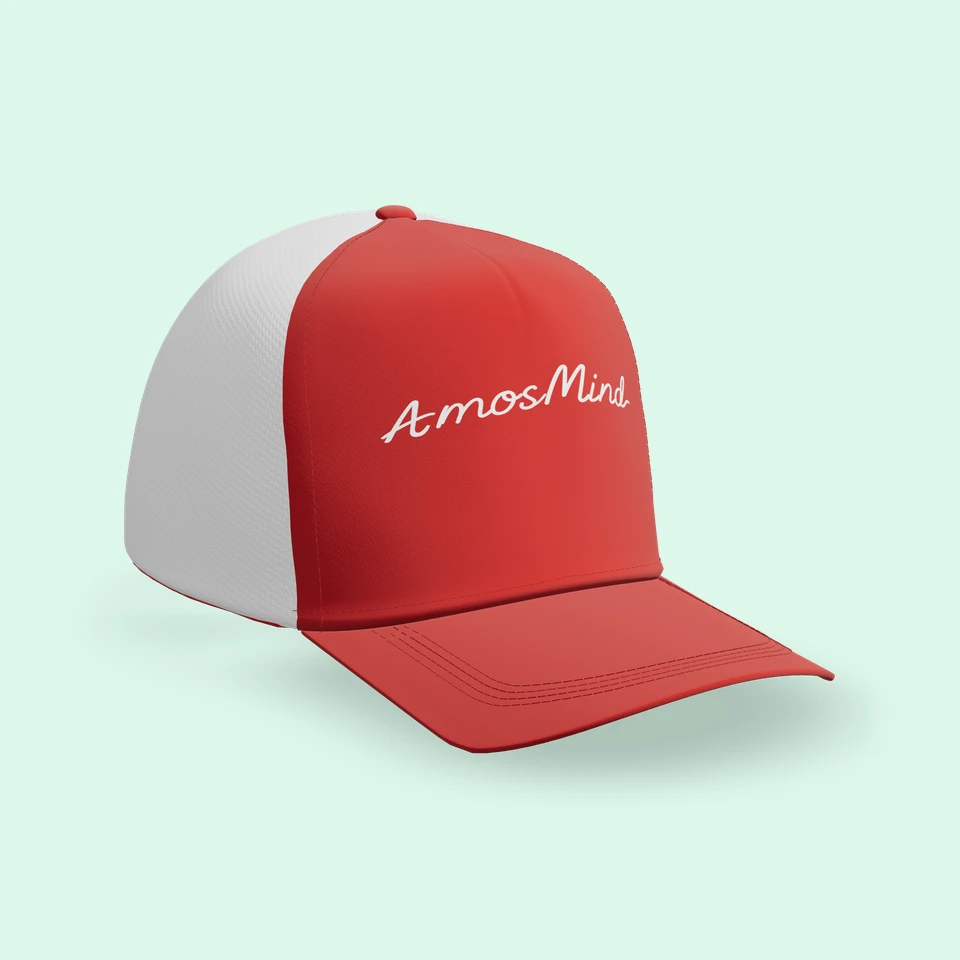
A trucker look: color the front and the mesh-look back panel separately.
One fabric choice covers the whole hat. Switch looks to match the season or the product you plan to sell.
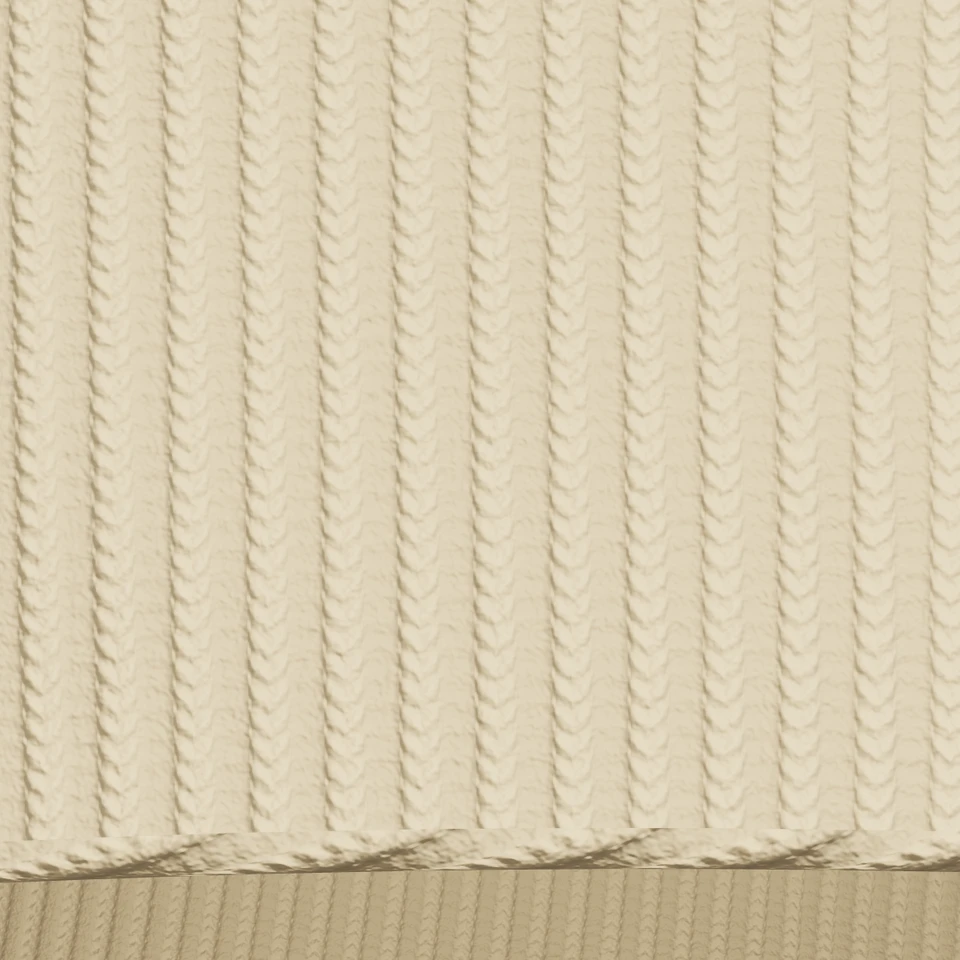
Stretchy ribs for beanies and knit balaclavas.
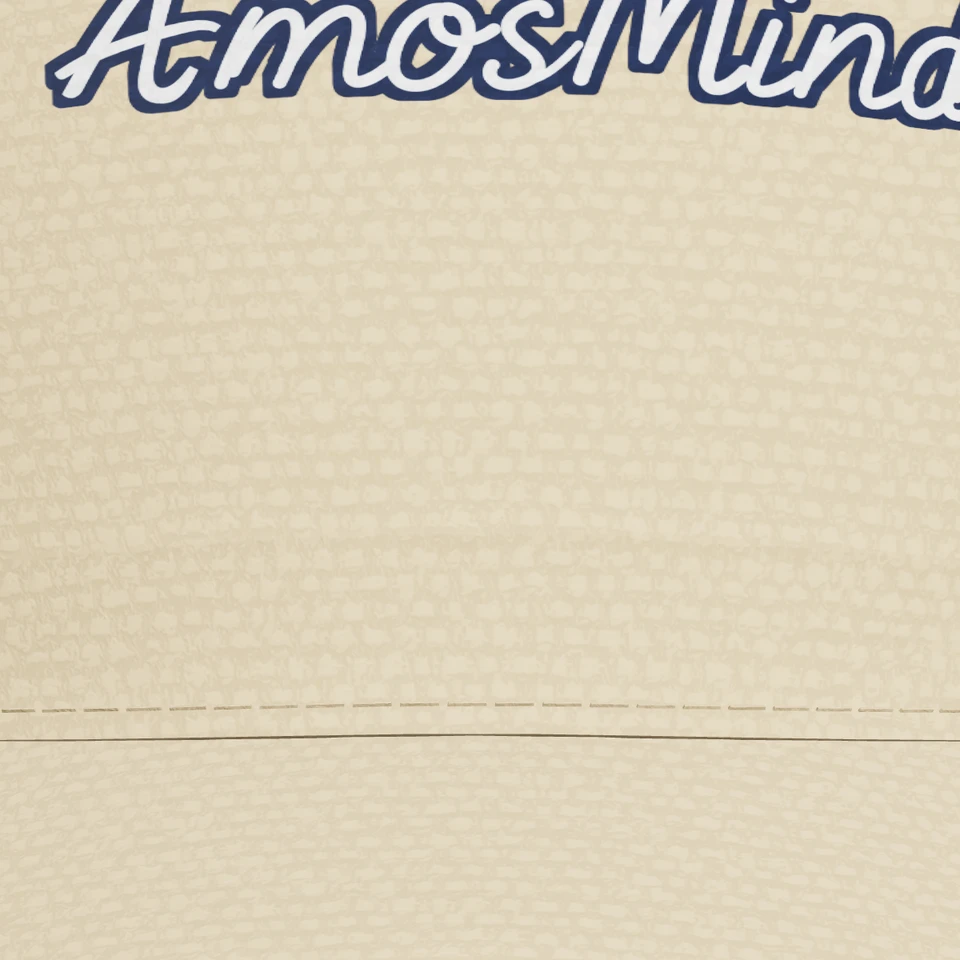
A structured weave for caps, bucket hats and workwear styles.
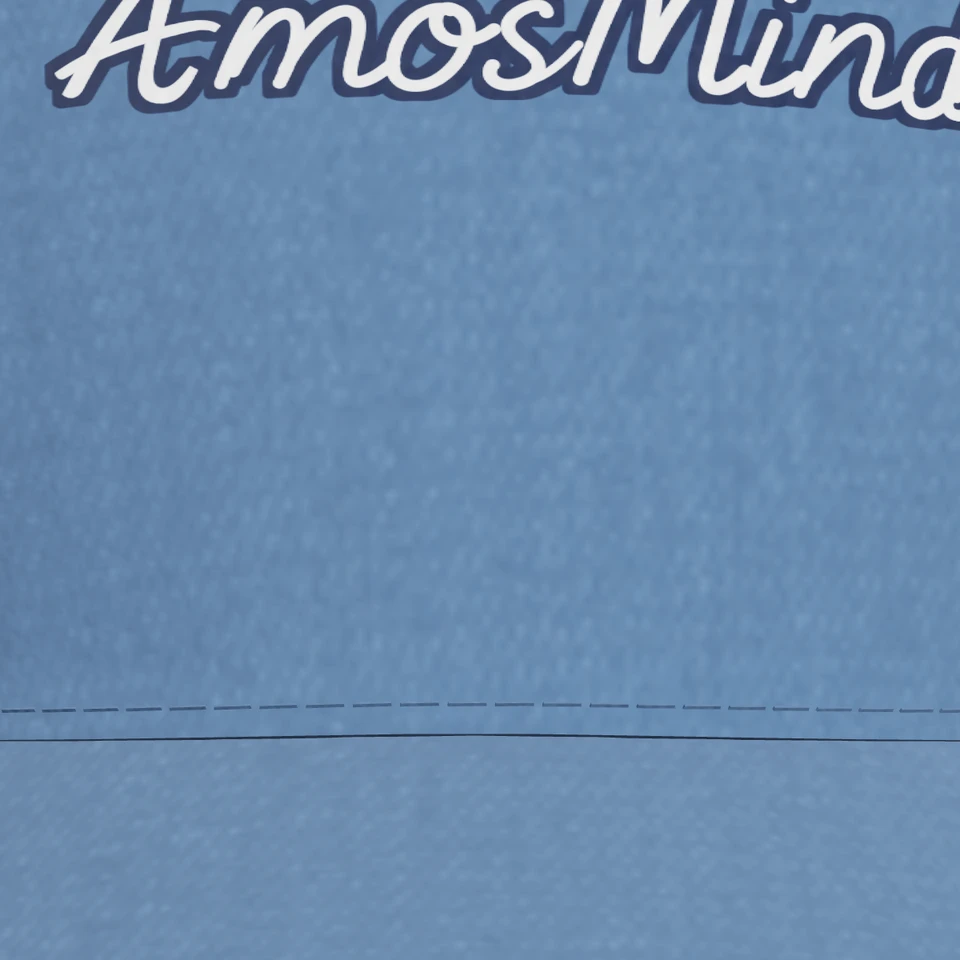
Washed blue-jean texture for vintage caps and bucket hats.
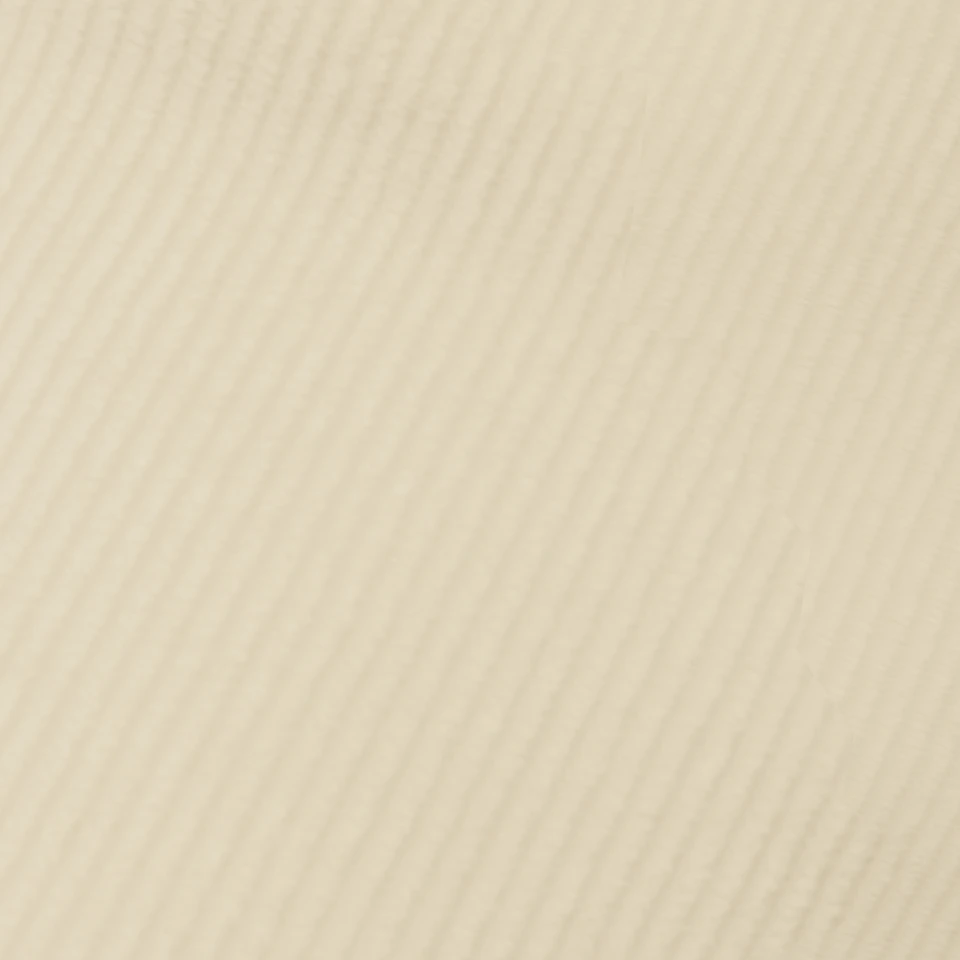
Soft ribbed lines for retro caps and bucket hats.
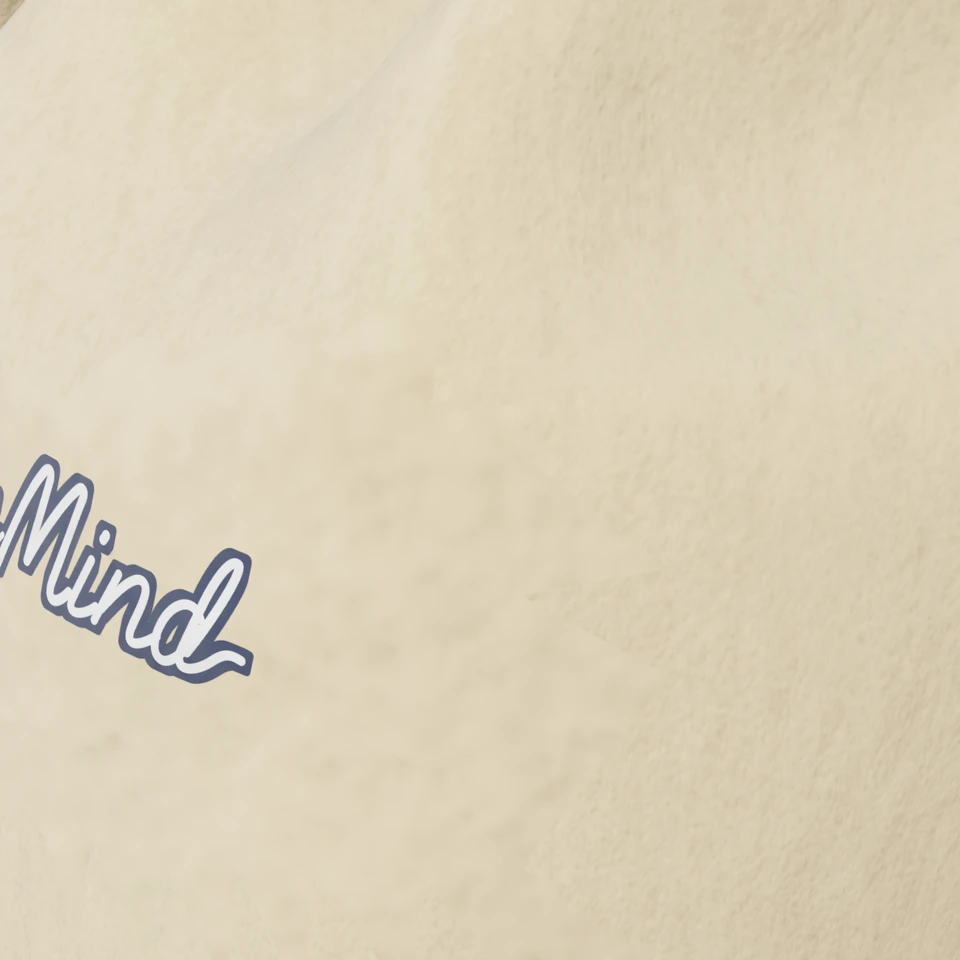
A smooth, matte finish for cowboy hats and berets.
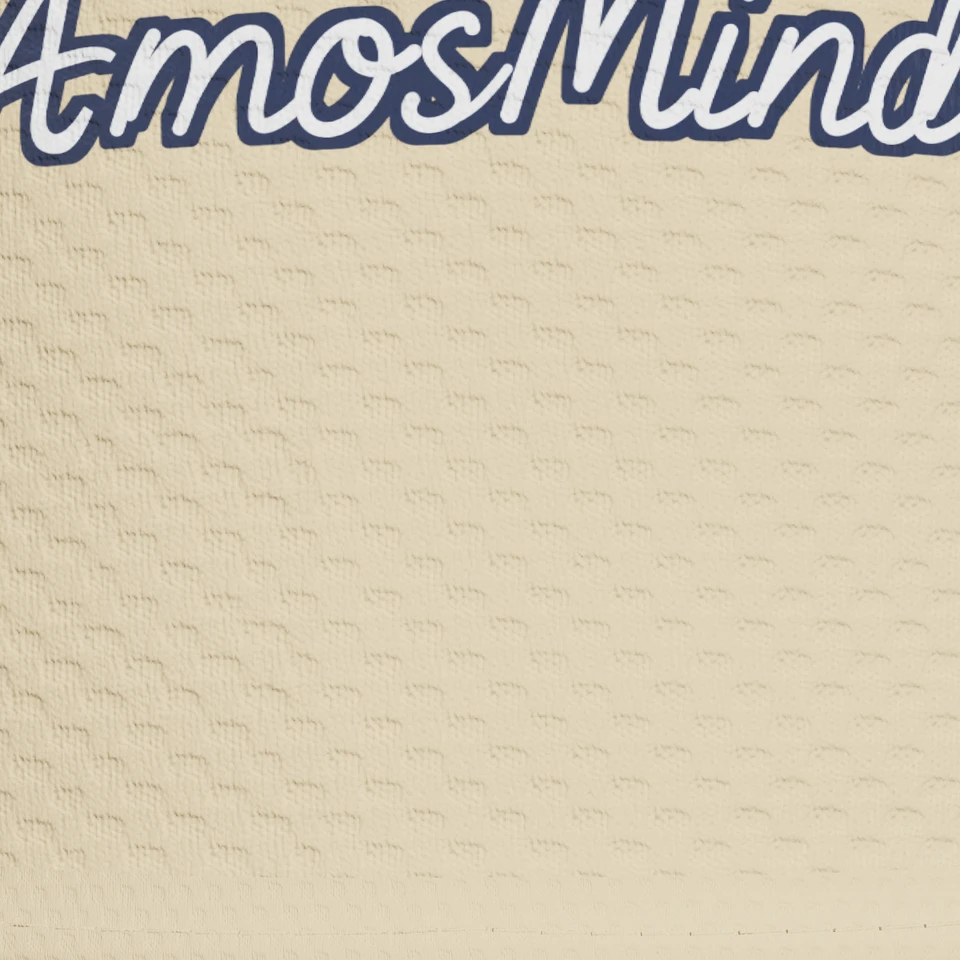
A dotted performance look that stays opaque in the editor.
Where artwork can go depends on the hat family. Use this table to pick a style before you open the editor.
| Hat family | Print areas | Good for |
|---|---|---|
| Beanies | Front on the cuff or crown; a few styles add a crown or label area | Winter merch and knit labels |
| Baseball caps and trucker hats | Front panel above the brim | Team caps, logos and wordmarks |
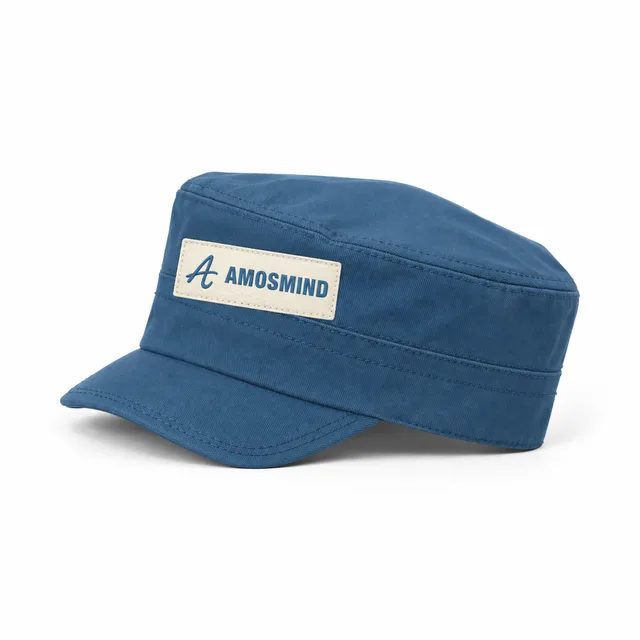
| Camp caps and dad hats | Front, plus a side area on some styles | Small side marks next to a front logo |
| Bucket hats | Front of the crown; one style adds a band area | Festival and summer merch |
| Cowboy hats | Front of the crown | Western boutiques and event hats |
| Visors and sun hats | Front, plus the brim on some styles | Resort, golf and beach brands |
| Balaclavas | Front; some add a side, hood or cuff area | Streetwear and outdoor gear |
Print areas are previews for placement, not production templates.